FAQ Overview

Projects

Go to category

How do I add left over colours? (Version 1)

In order to add left over colours they must have been added to a project first.

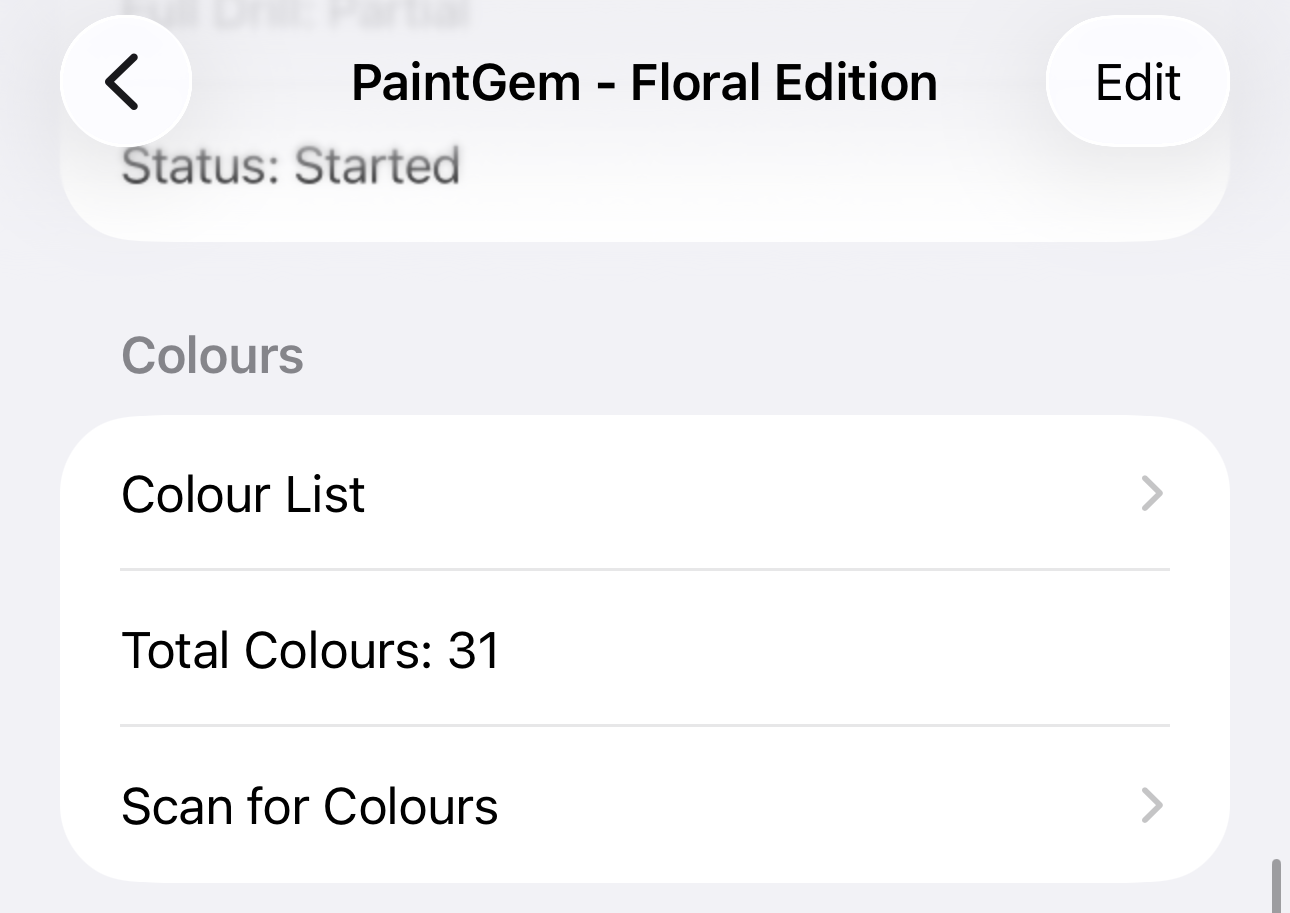
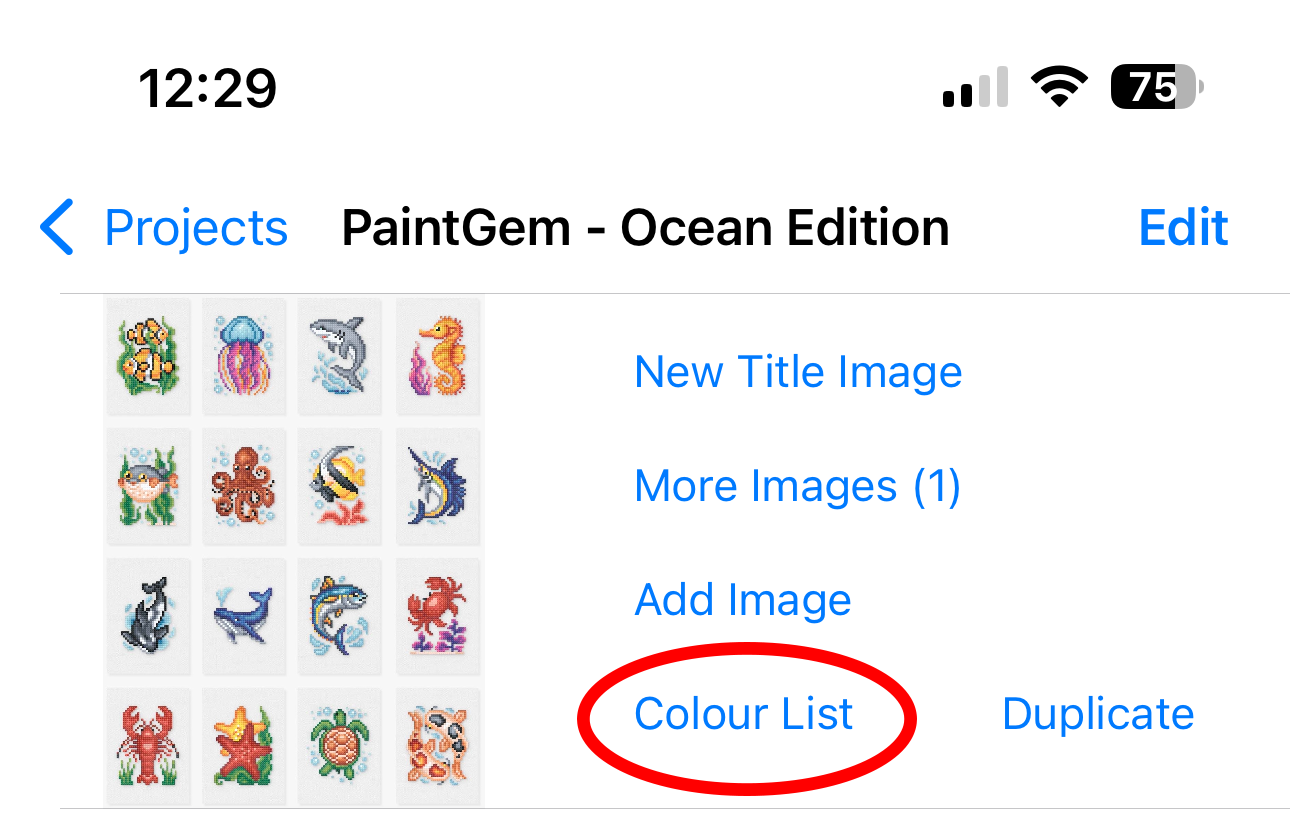
  1. Go to the project you wish to add the spares to, then select the Colour List option
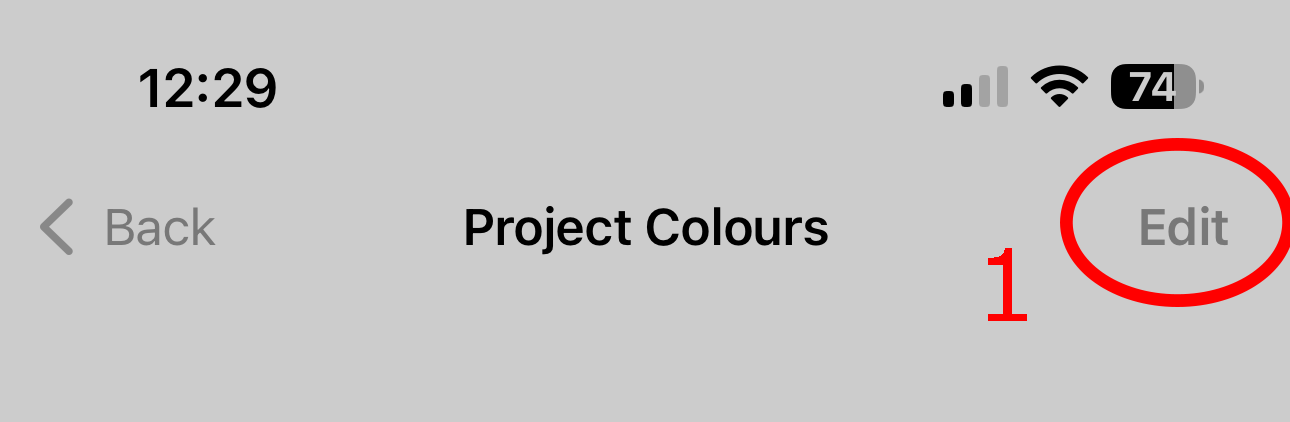
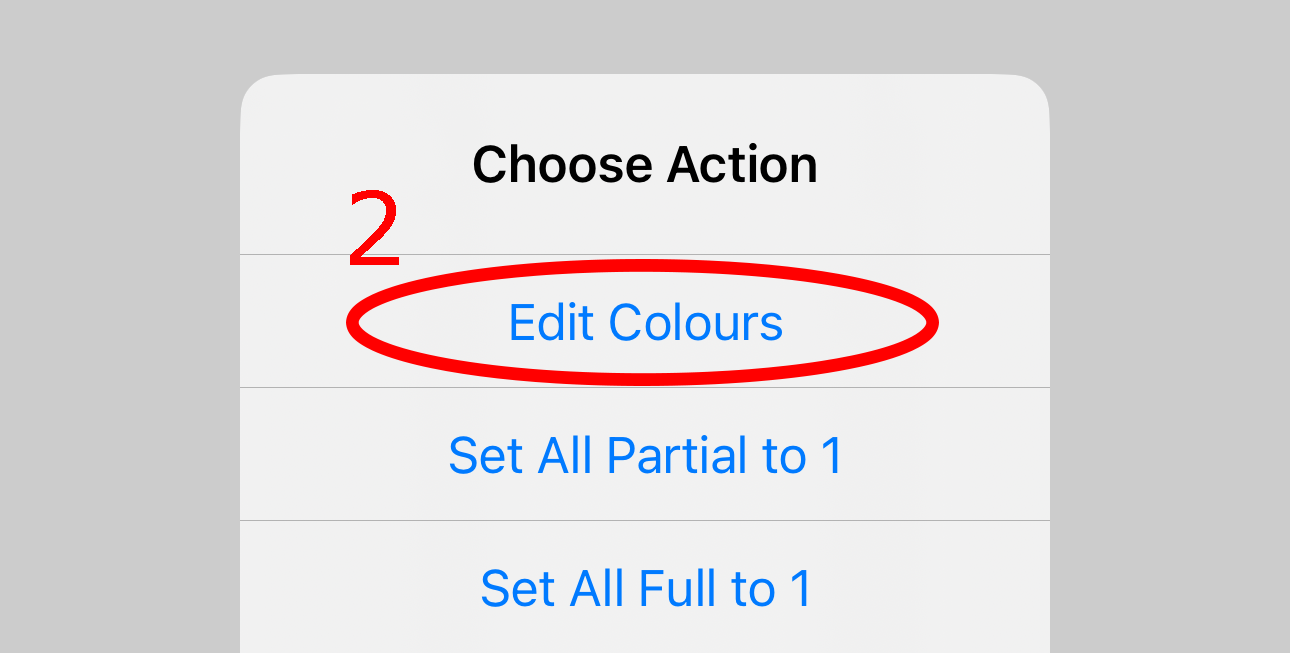
  2. If the list is blank, you will need to select Edit, then edit colours, otherwise go to Step 4

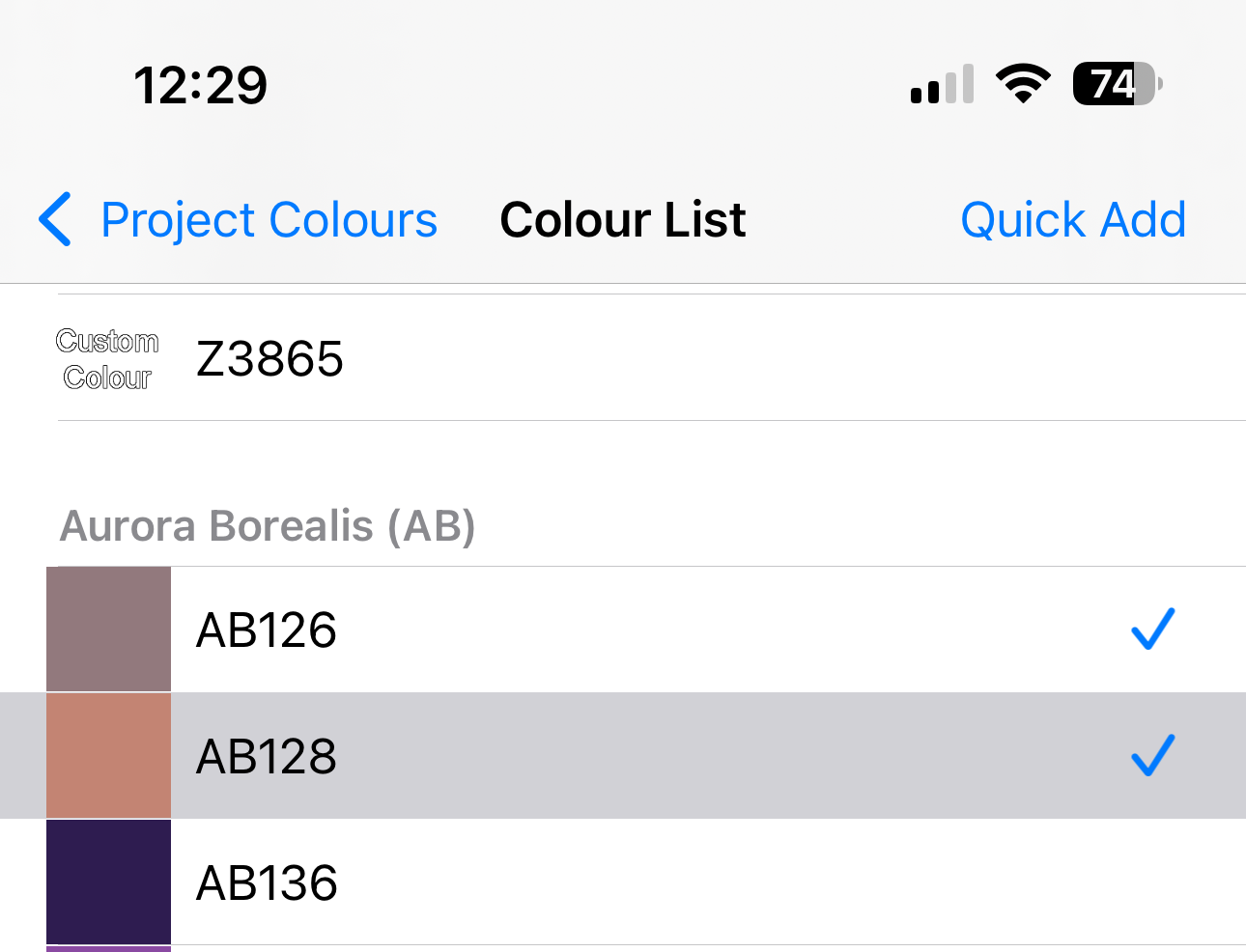
  3. Select the colours you wish to add. Those that are added will appear with a tick against them. Once that have all been selected, go back


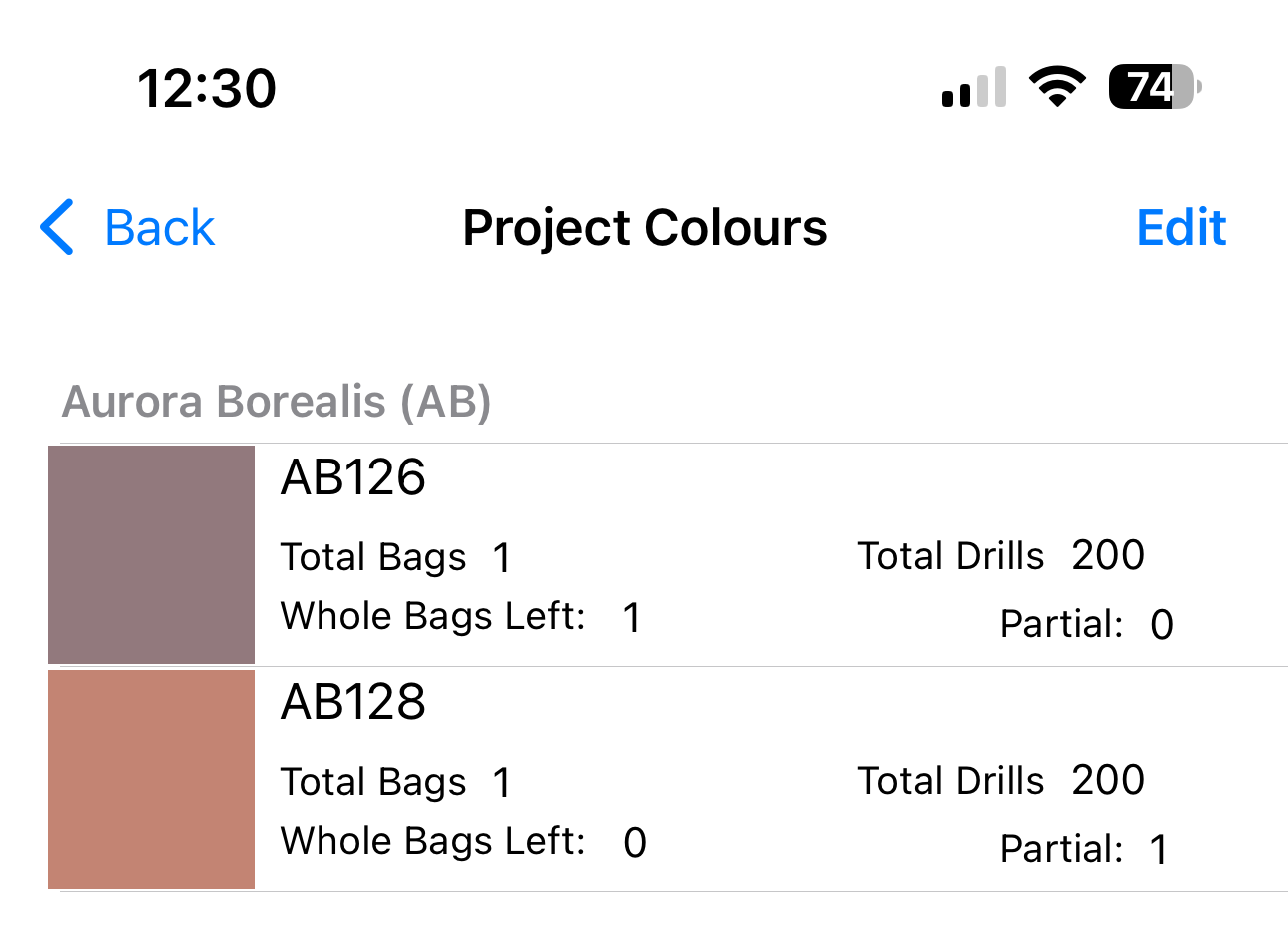
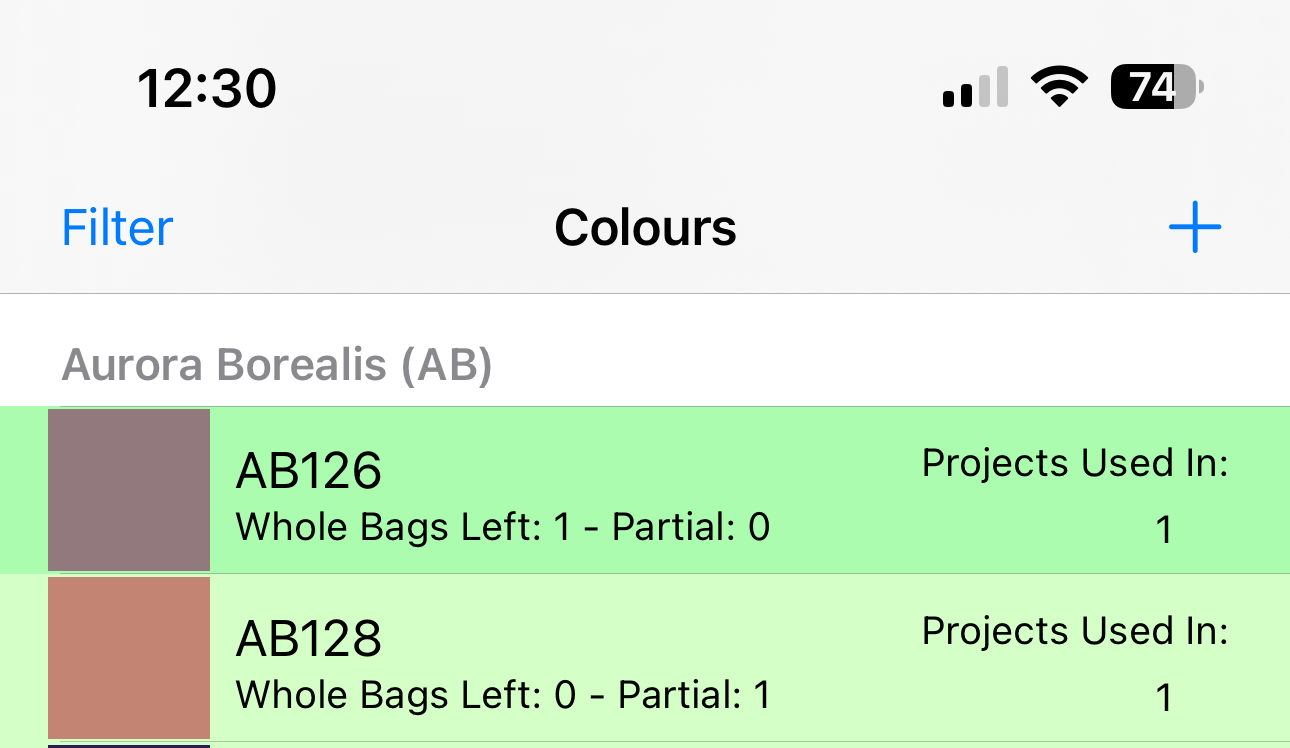
  4. In the colours list, there will be two text fields, Whole bags and Partial bags. Enter the values here.
  5. They will now appear in the colours list

2025-12-14 17:32
Ceri Turner

How do I delete a Project or Wish List item? (Version 1)

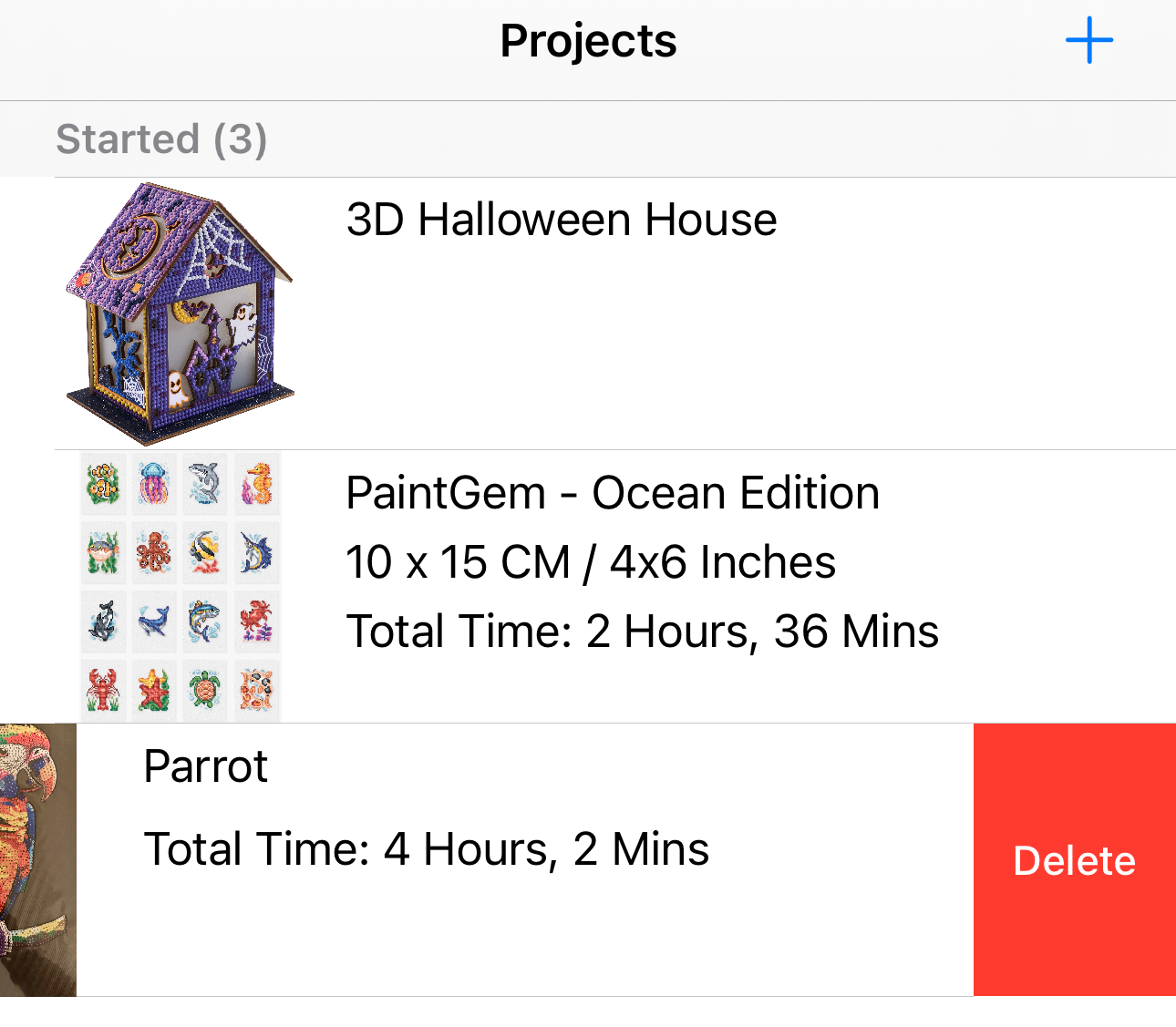
In order to delete a project, from either the Project List of Wish list, swipe left. This will bring up a delete option. You can either continue to swipe left, or click the delete button.

2025-12-14 00:34
Ceri Turner

How do I edit a Project? (Version 1)

  1. Select the project from the list that you want to edit

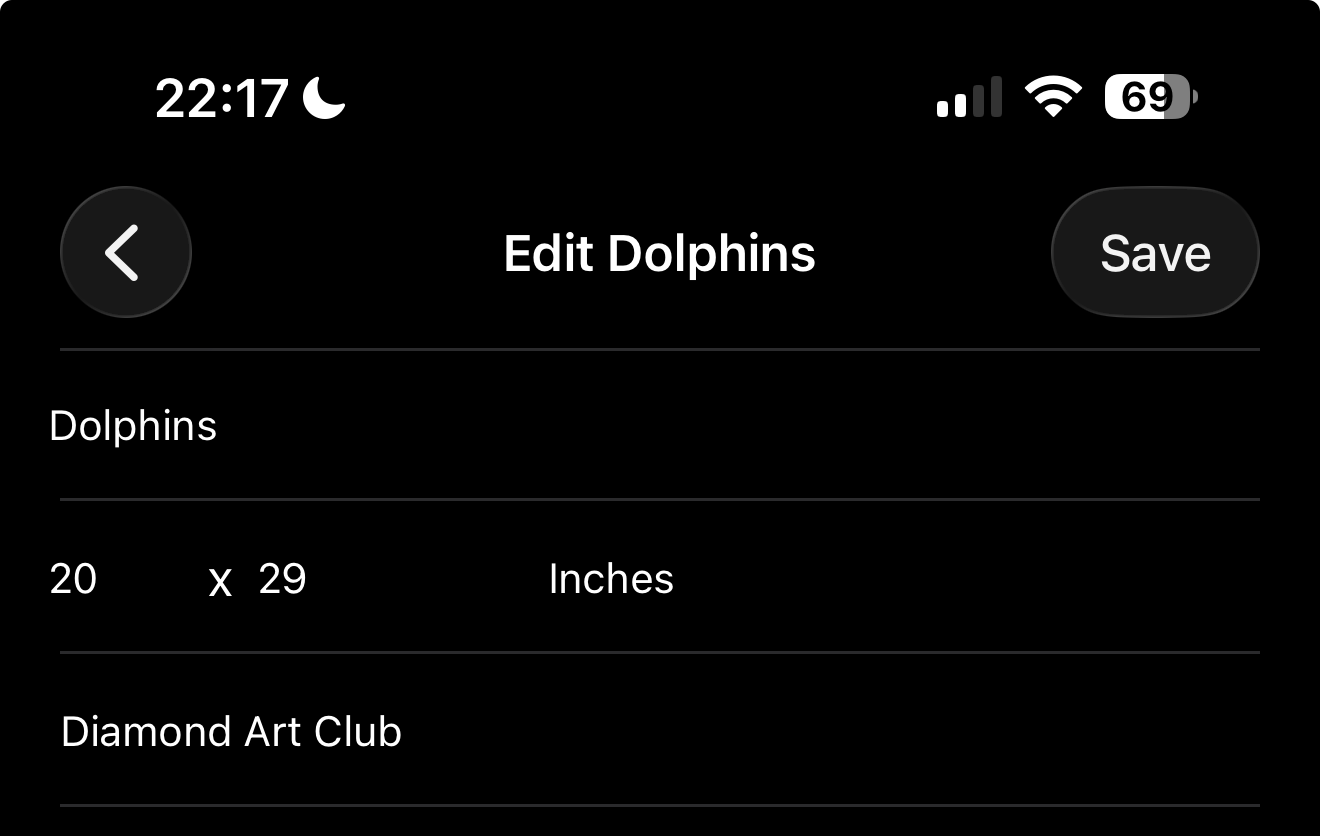
  2. Select the edit button


  3. Make the changes that you wish to, then select Save

  4.  

2025-12-14 00:34
Ceri Turner

How do I add notes? (Version 1)

There are two ways to add notes, either when you create the project, or when editing it.

With both methods, the notes field in at the bottom of the screen.

The first image shows when adding a new project, the second image shows when editing a project.

Adding a project Editing a project

Once you've saved, it shows at the bottom of the project view

2025-12-14 00:34
Ceri Turner

How do I add Hours (Version 1)

There are two ways of recording the time you've worked on a project

Adding through the project screen

To start recording

  1. Go into the project you wish to add hours to, you will see two button. View Hours and Add Hours

  2. Select the Add Hours Button

  3. Leave both fields as they are and select Save. If you are adding hours you have previously done, select the dates and update them, then select Save

To Finish Recording

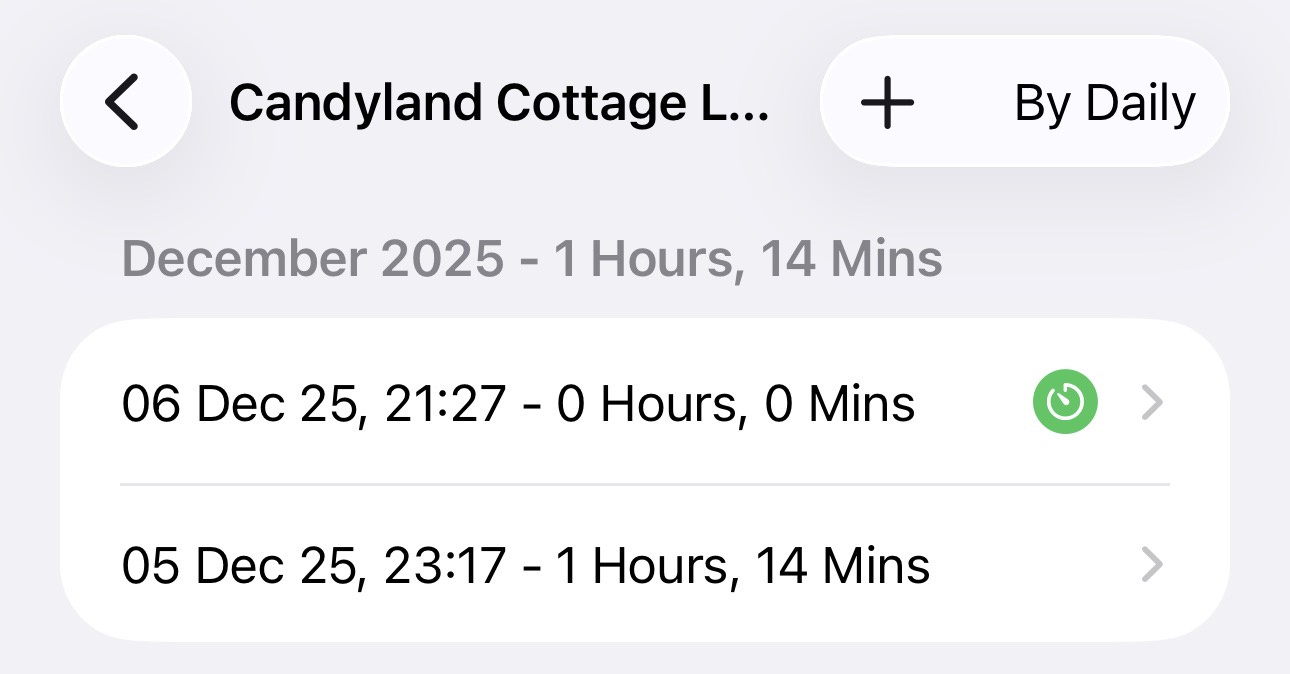
  1. Once you have finished working on your project, select the View Hours button. You will find the last one will have 0 hours/minutes registered against it. Select this one.


  2. Select the end time and either select now, or manually change the date/time. Select Save

Adding without opening the app
This method only works for projects that are in the started status.

To Start Recording

  1. Long press and hold on the app icon, this will bring a menu up. 


  2. From the menu, select the project you wish to start the time on. You will receive a confirmation the recording has been started.

To Finish Recording
This method works for any status, as long as a time has been started

  1. Long press and hold on the app icon, this will bring a menu up. 

  2. From the menu, select the project you wish to end the time on. You will receive a confirmation the recording has been ended.

2025-12-14 00:34
Ceri Turner

How do I add breaks to time recoding (Version 1)

  1. Go into the time list of the project you wish to add a break to

  2. Select the current active session (usually the top)


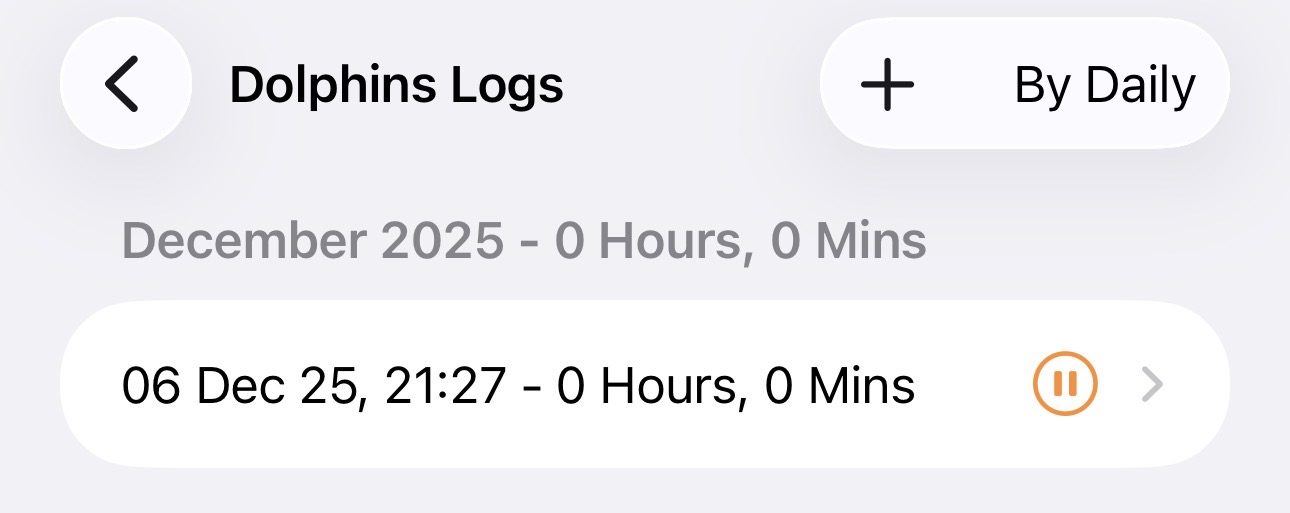
  3. From the details, select the Pause button, this will take you back to the previous screen


  4. If you look back at the session, the breaks so far will go up, and Pause is replaced by Resume


  5. To finish a break, selec the Resume button

2025-12-14 00:34
Ceri Turner

Automatic Adding Colours to a Project (Version 2)

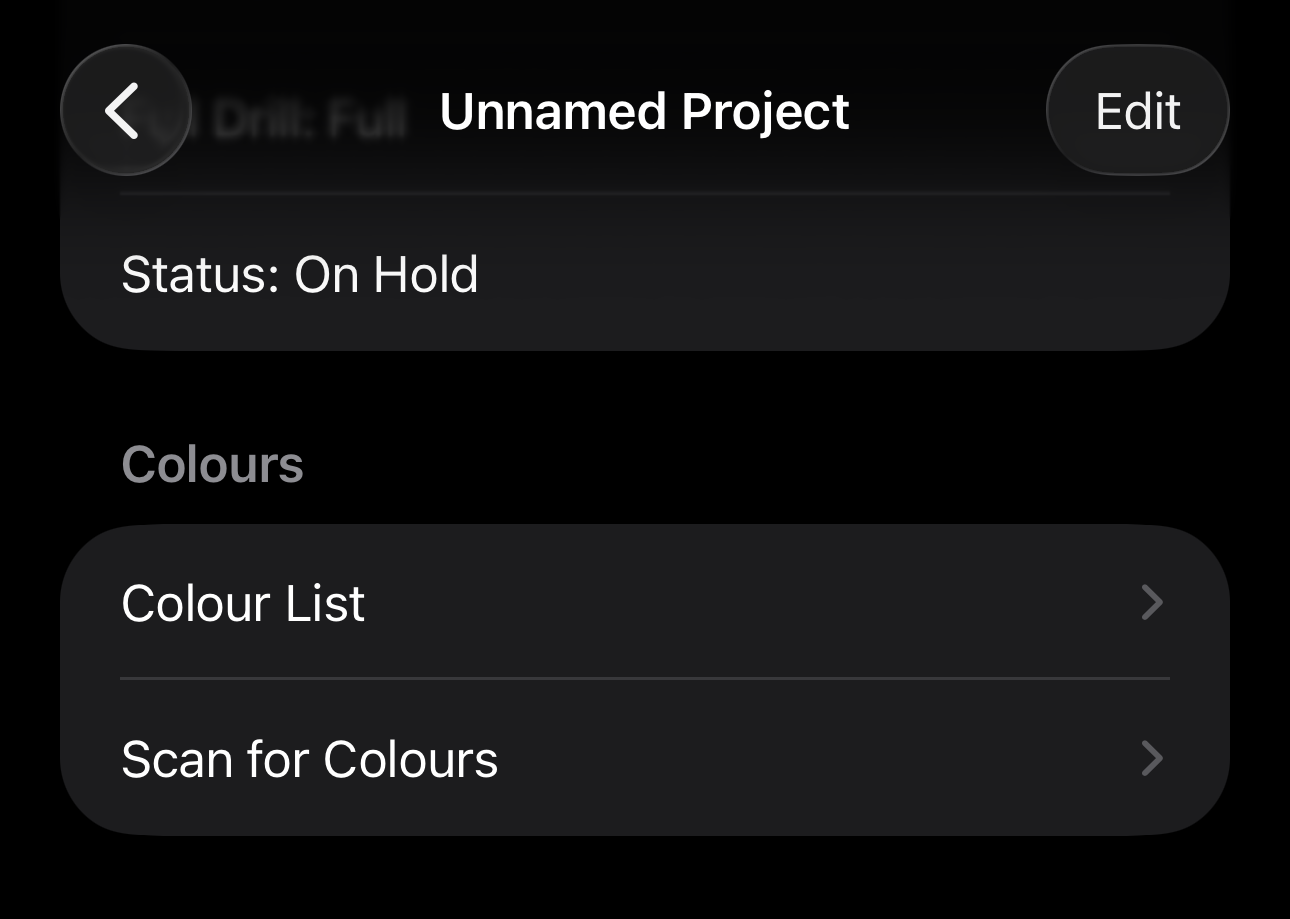
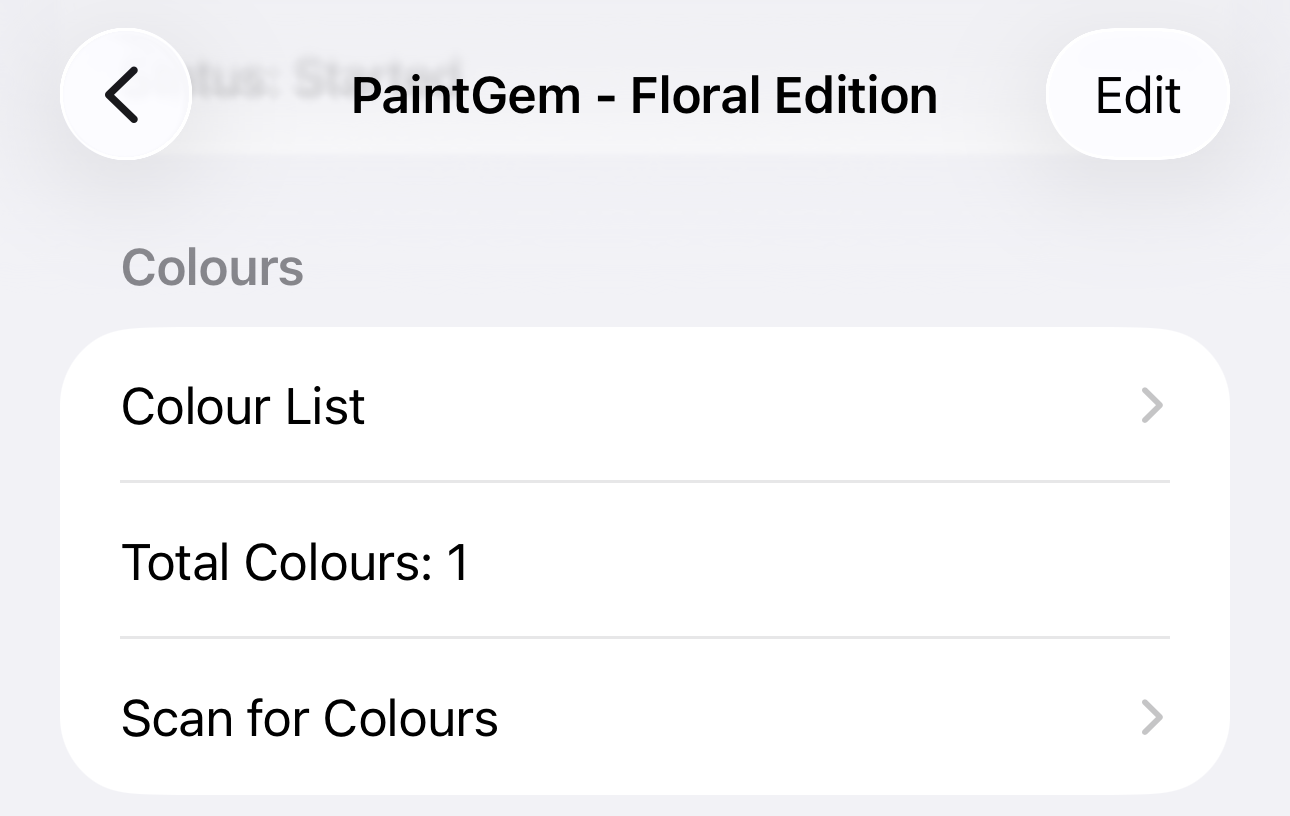
  1. From the project details, select the scan for colours from the Colours section


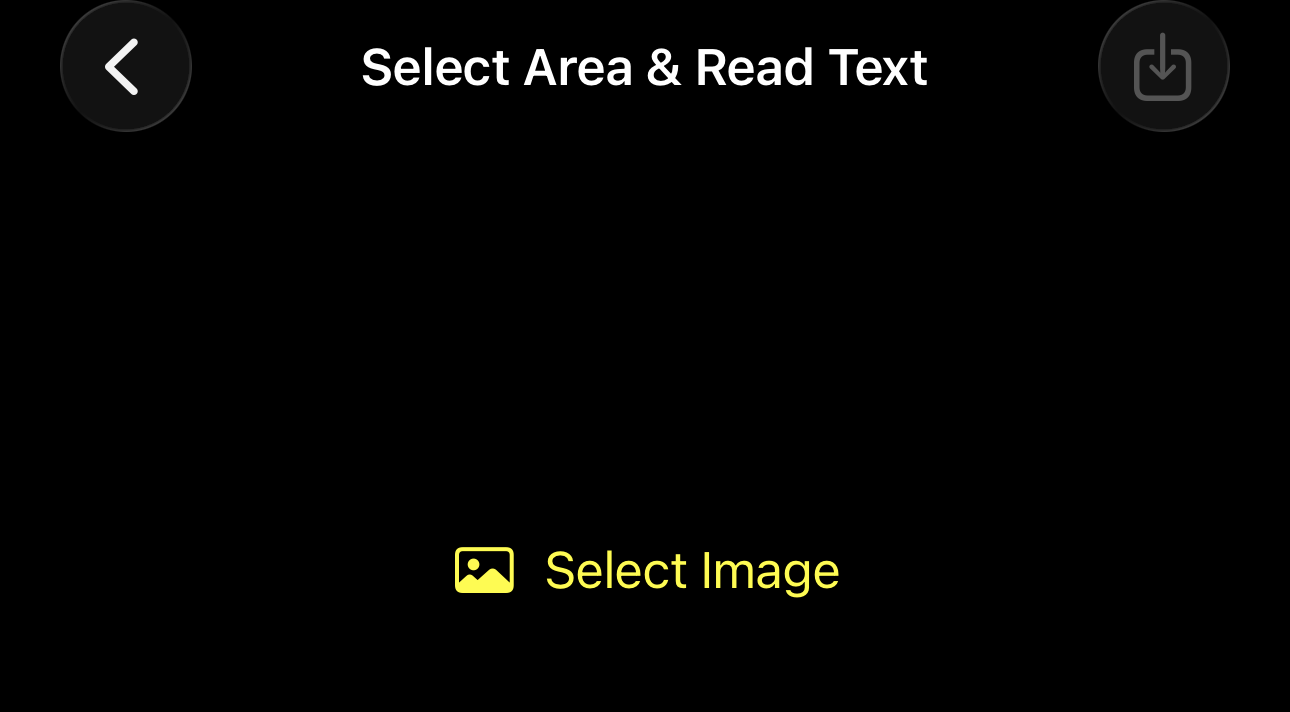
  2. Select the Select Image button


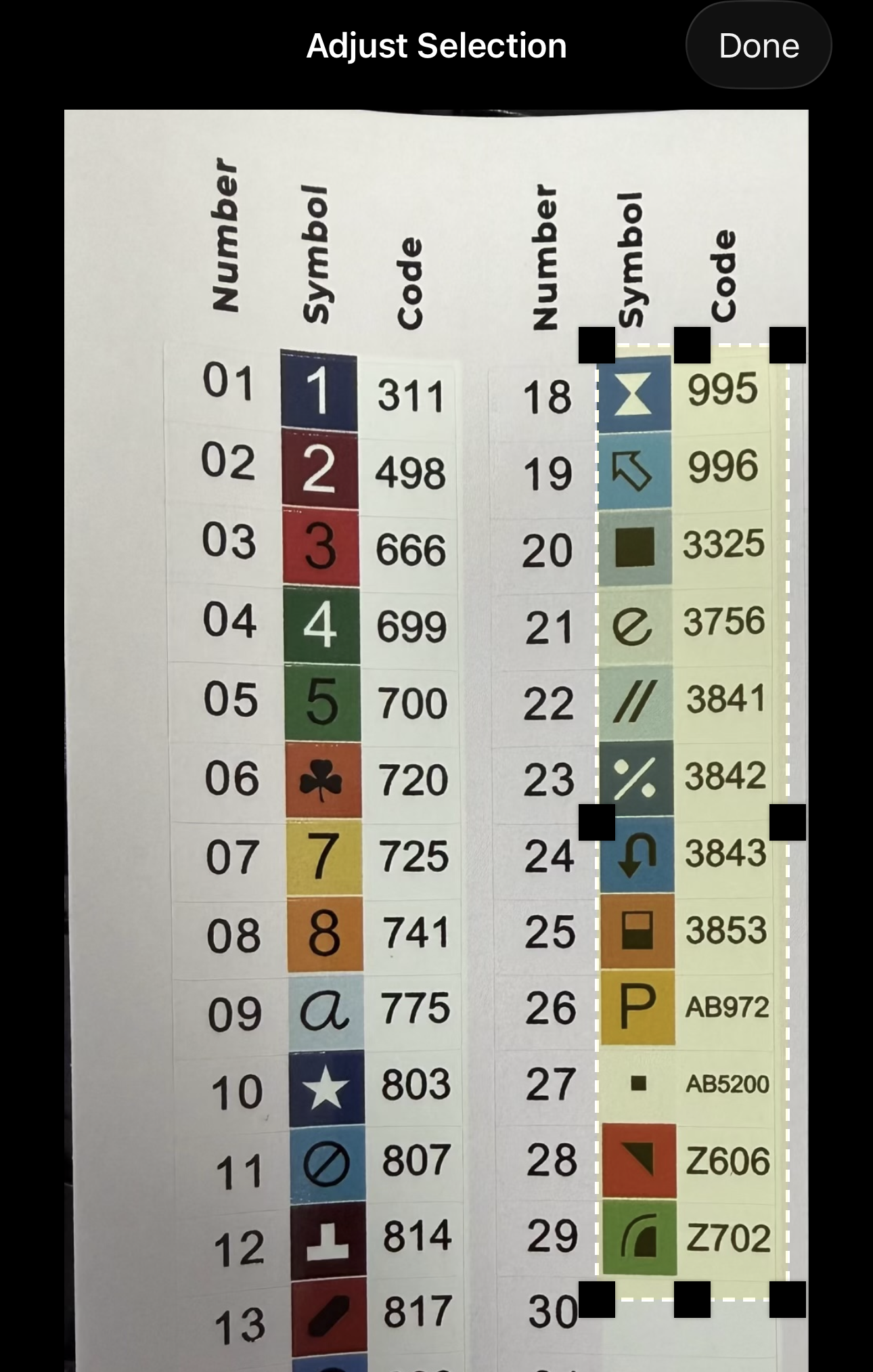
  3. This will load the photo library, select the image that has the key

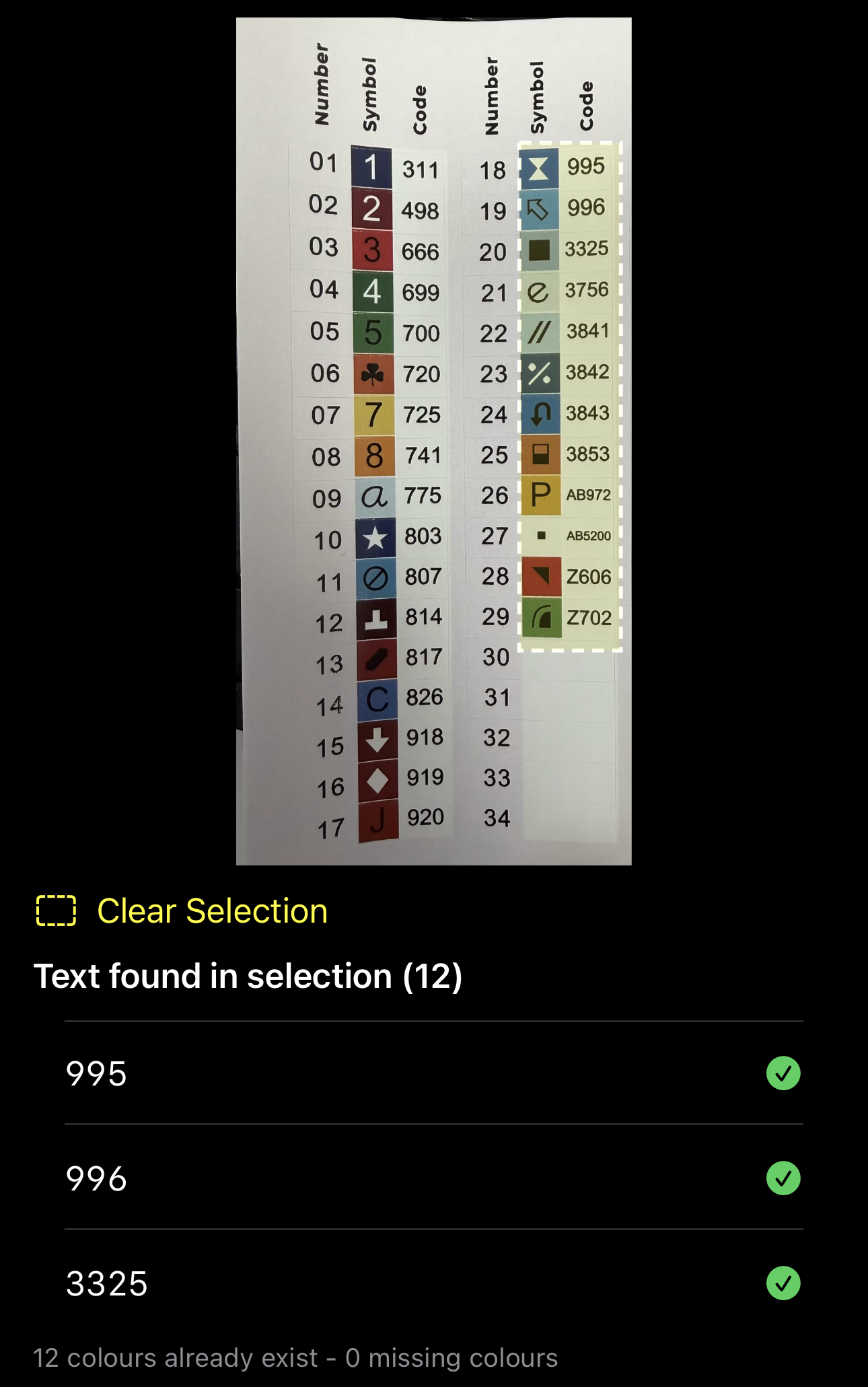
  4. From the full screen image, select the area you'd like to read


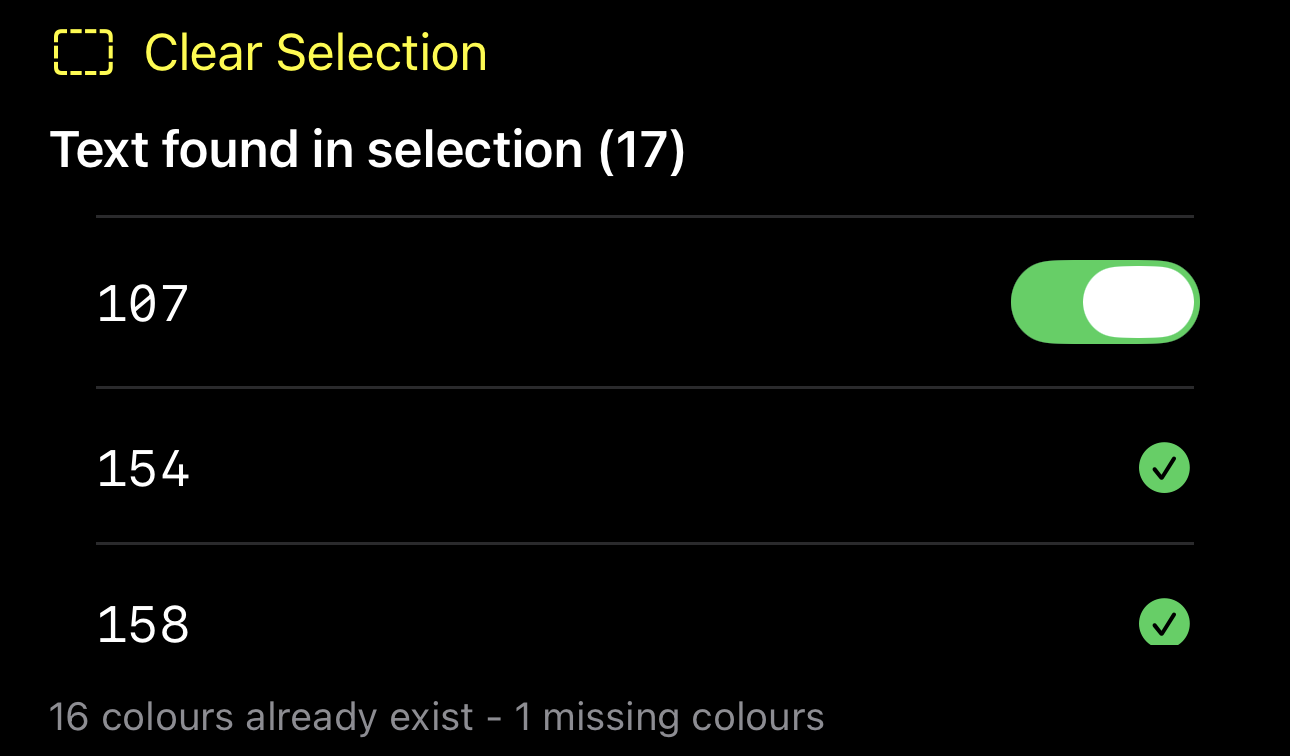
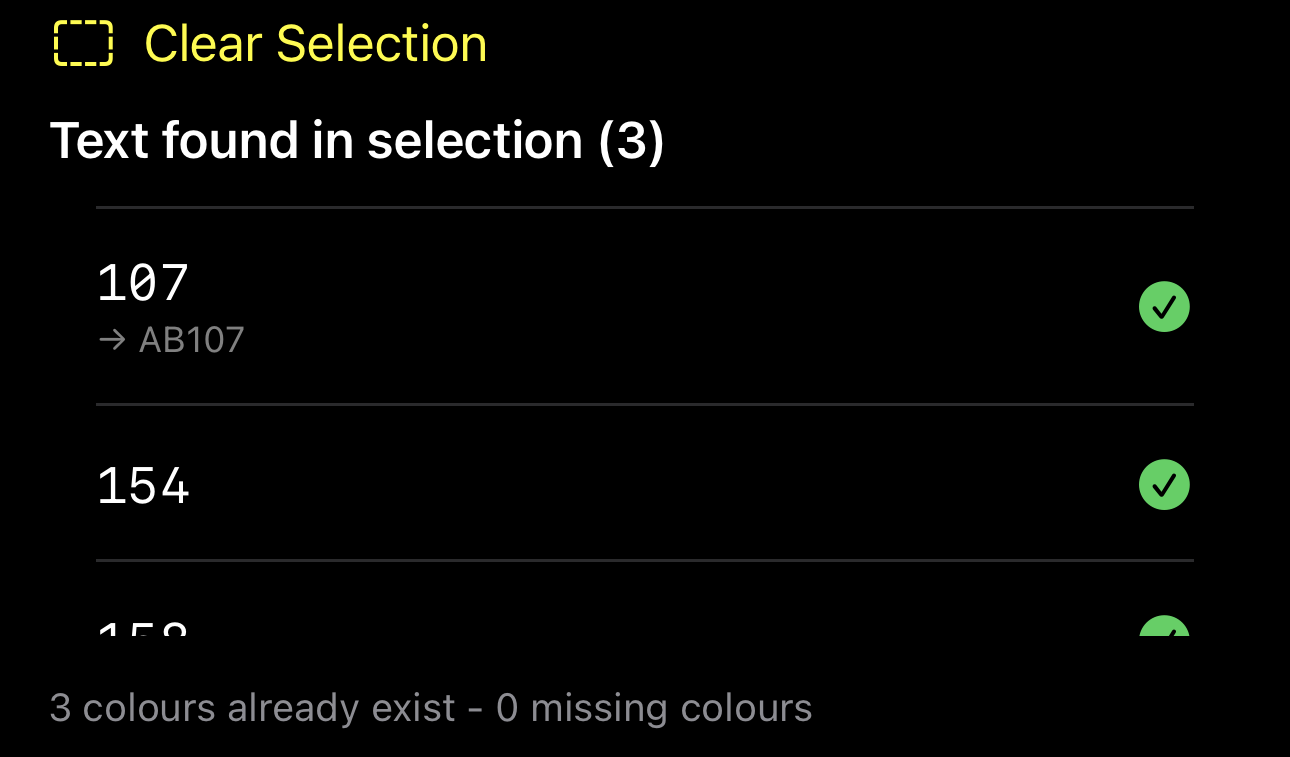
  5. It'll show you what colours its matched against


    • From this screen you can also tap the image again to adjust the selected area
    • You can select the select image button again to change the image
    • If it picks up a colour thats not already in the system, it presents the option to add it
  6. If it picks up an old DAC colour (100-148) then it auto adjusts as they're stored as ABXXX in the database


  7. Select the button to save the colours to the project
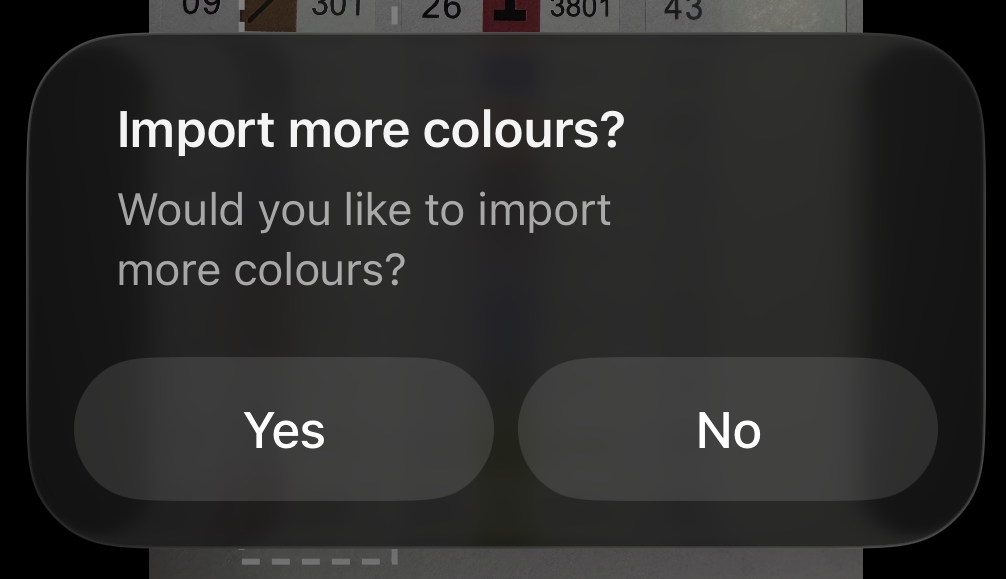
  8. It will then prompt if you want to import more colours


  9. The colours can then be seen in the colour list for the project

2025-12-14 00:33
Ceri Turner

How do I add left over colours? (Version 2)

In order to add left over colours they must have been added to a project first.

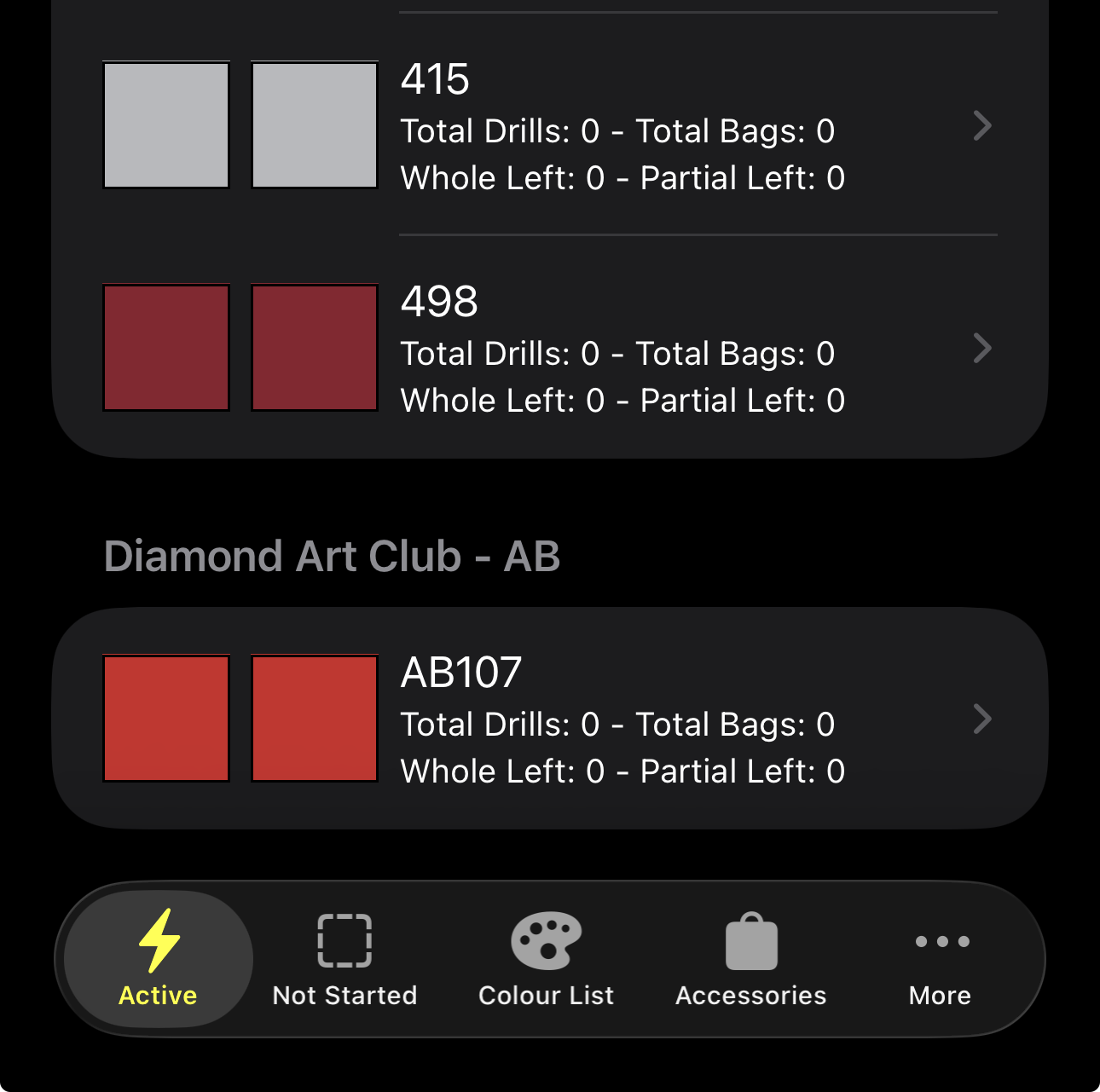
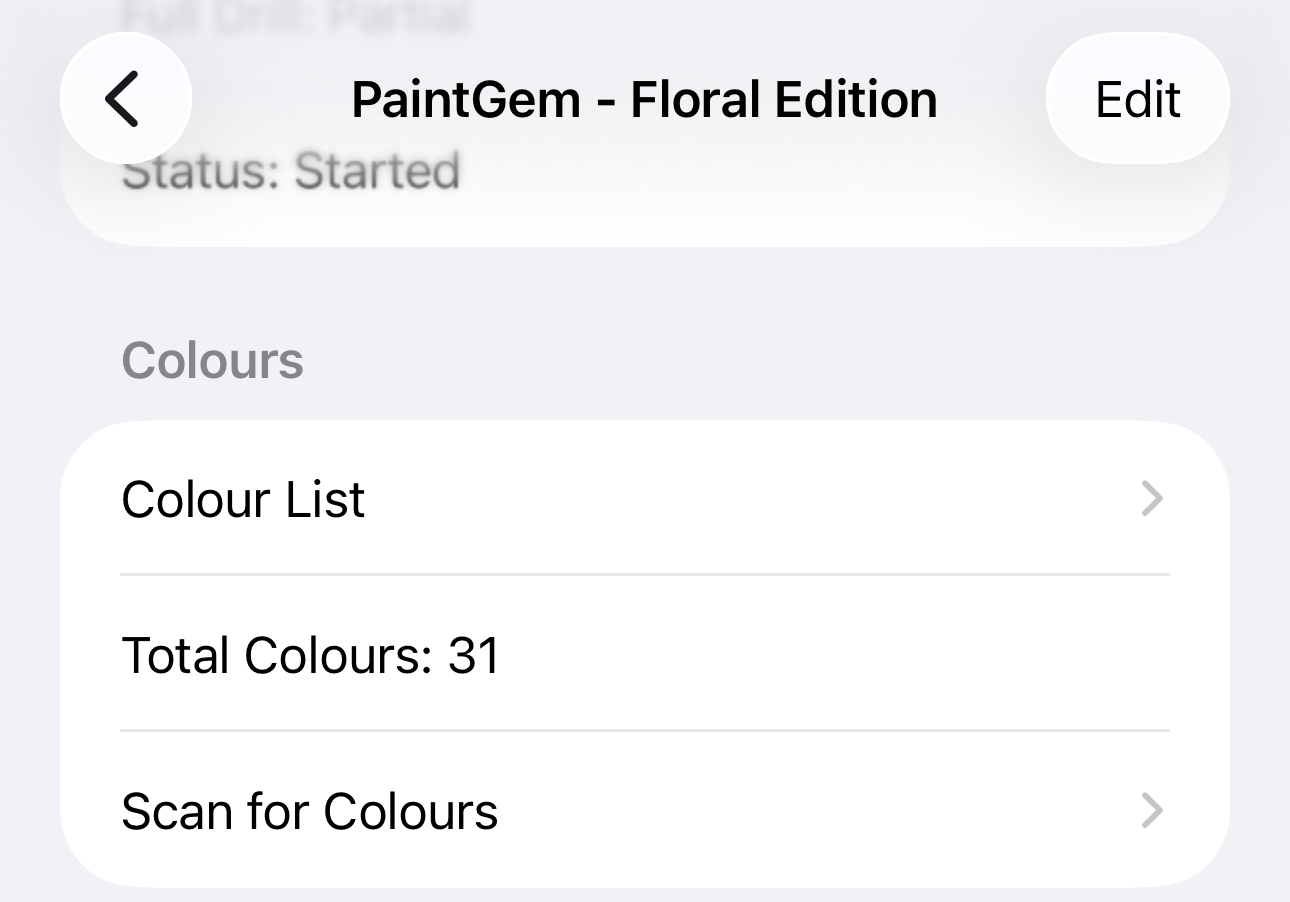
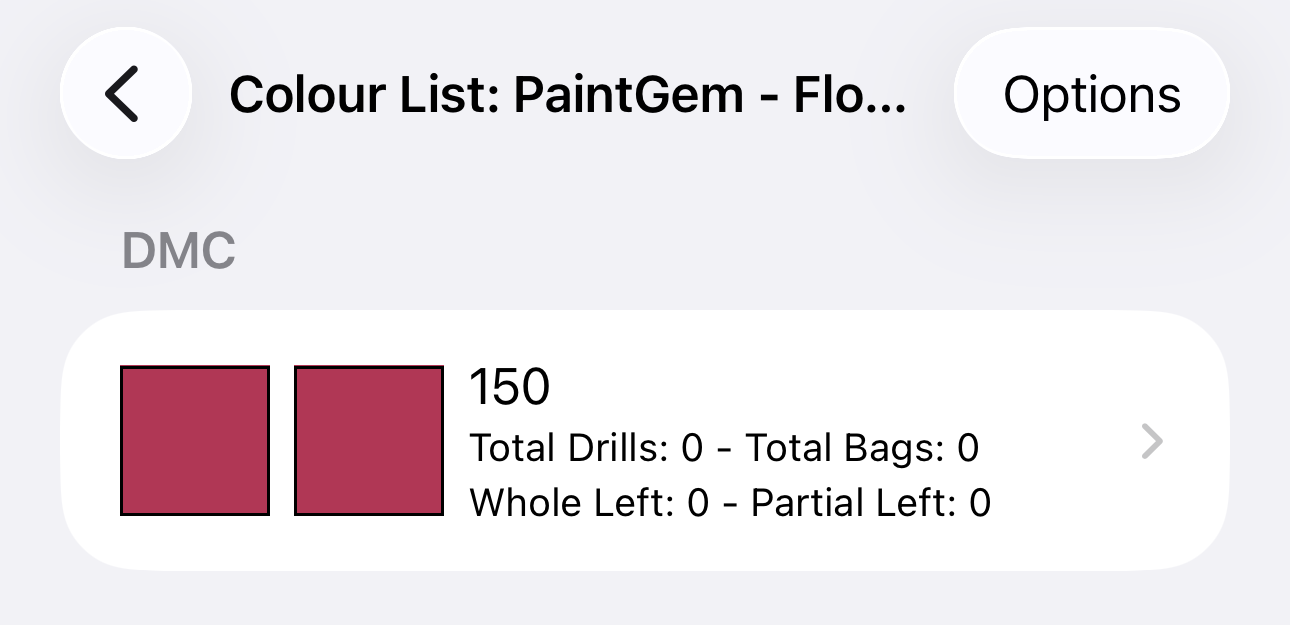
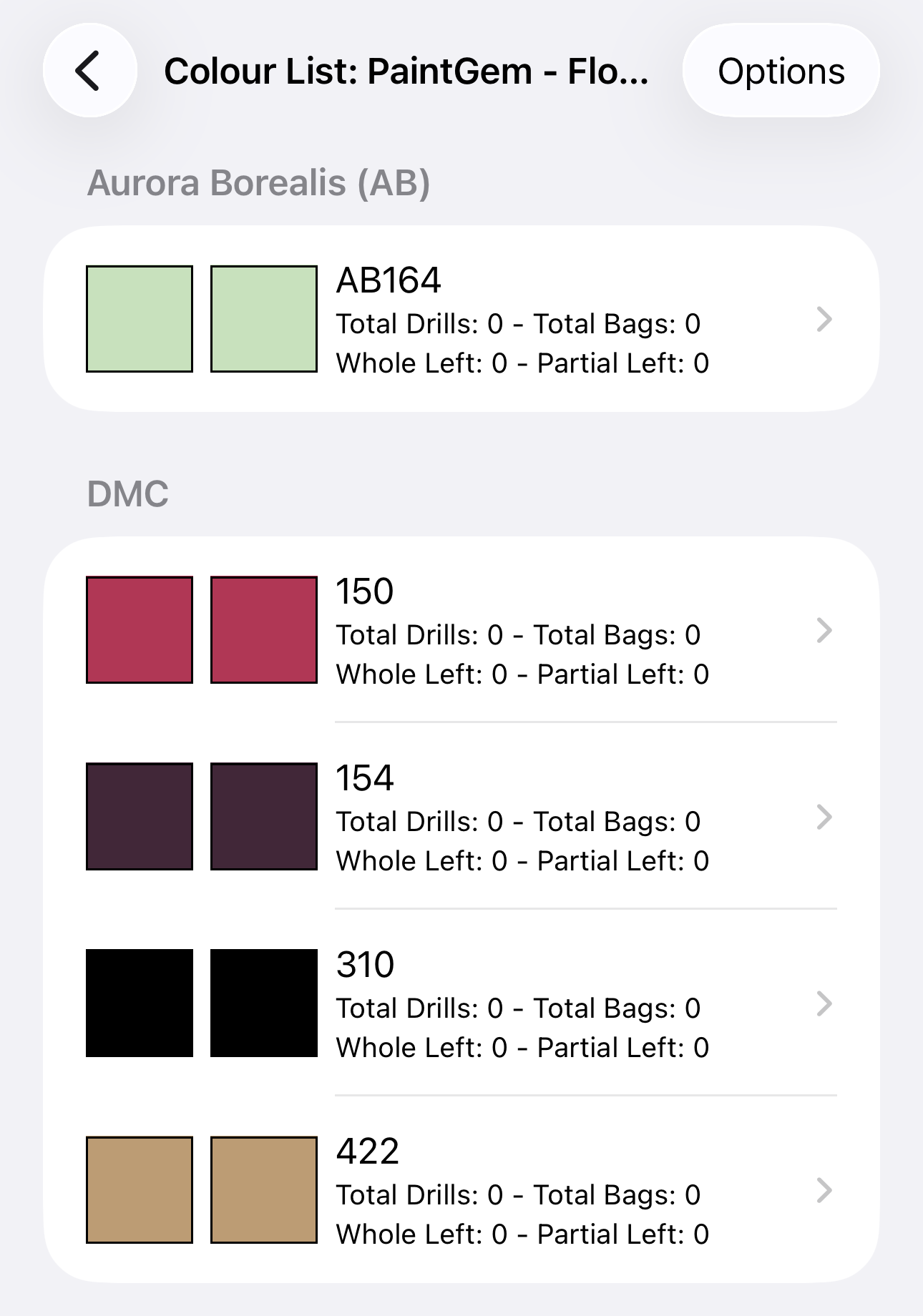
  1. Go to the project you wish to add the spares to, then select the Colour List option
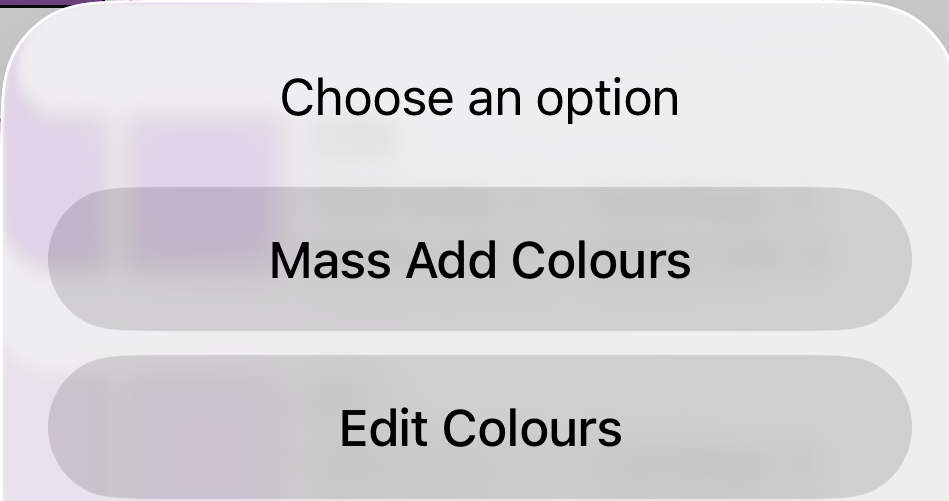
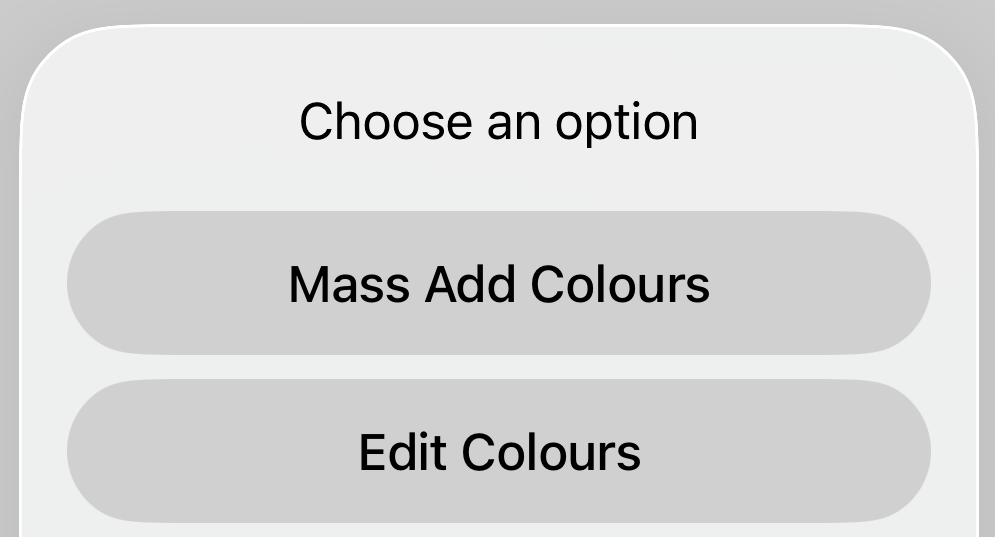
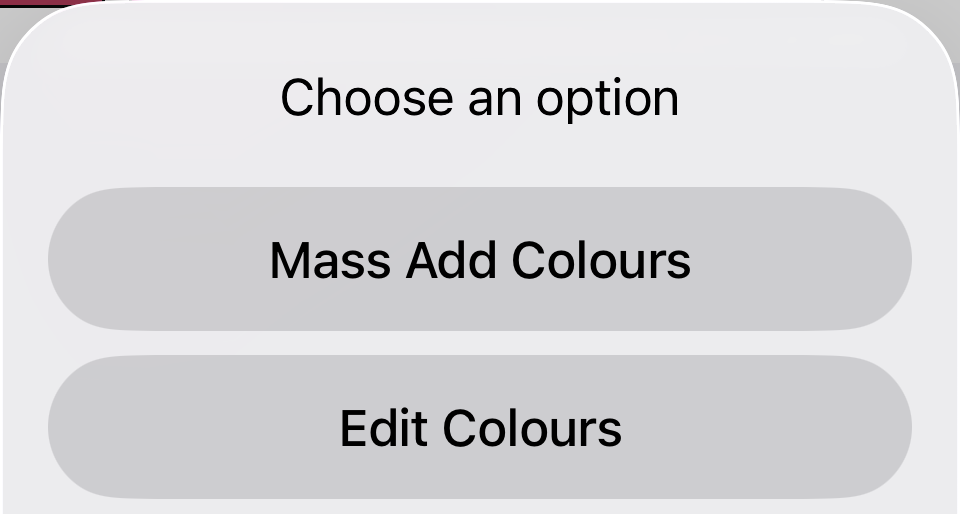
  2. If the list is blank, you will need to select Options, then either Mass Add Colours, or Edit Colours (Please see the Adding Colours Tutorial for full instructions), otherwise skip this step and go to 3
    Select Options Select either Mass Add or Edit
  3. There are two ways to change the number of leftover bags. 

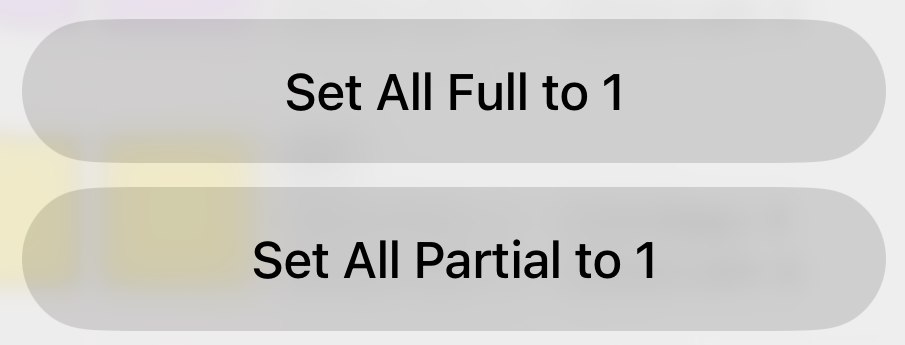
  4. To change all at once, you can select on Options, then on Set All Full/Partial to One
    Select Options Seelct either of the Set to 1 buttons


  5. To set colours individually, select on the colour you wish to change


  6. This will load another view, where you can se the details of the colour

2025-12-14 18:19
Ceri Turner

How Do I Add Colours To A Project (Version 2)?

There are multiple ways to add colours to a project. Select the option below to see the specific method for that way

Manually
Mass Adding
Automatic Adding
From Images

2025-12-14 21:51
Ceri Turner

How Do I Manually Update Colours In A Project (Version 2)?

Follow the below to manually add/remove colours from a project

  1. Select the project you wish to update the colours for

  2. Under the Colours section, select Colour List


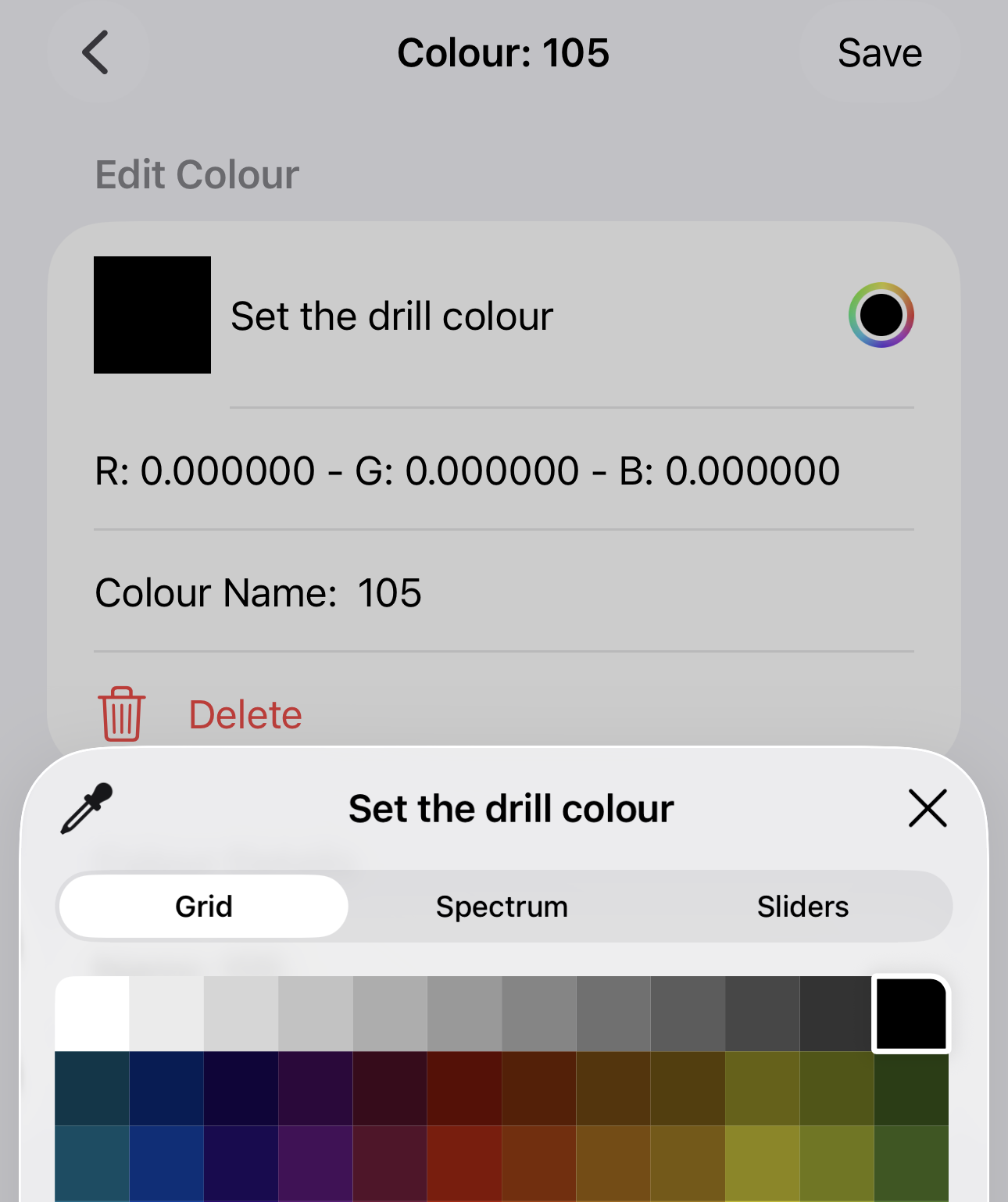
  3. Select Options, then Edit Colours
    Select Options Select Edit Colours


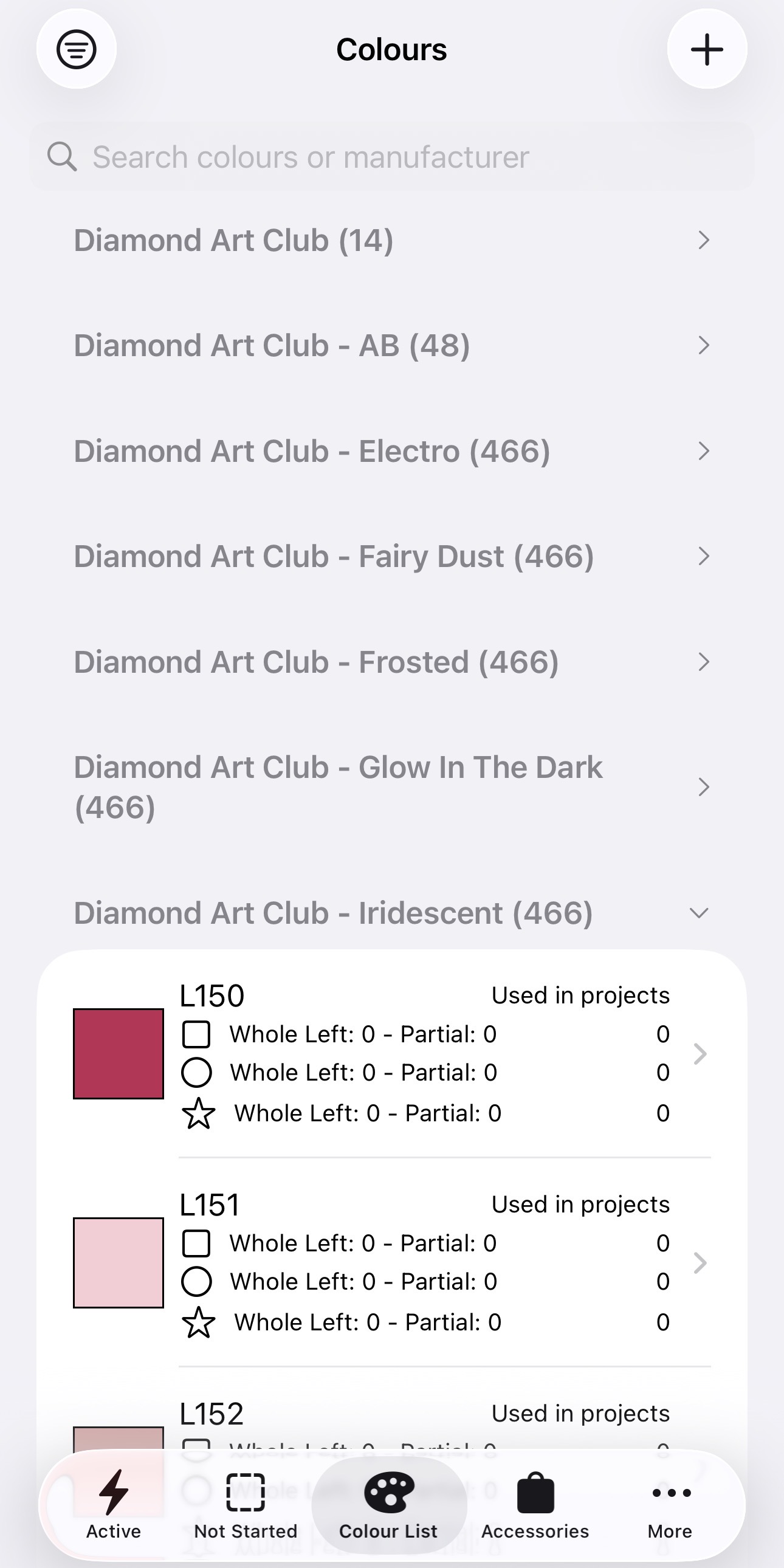
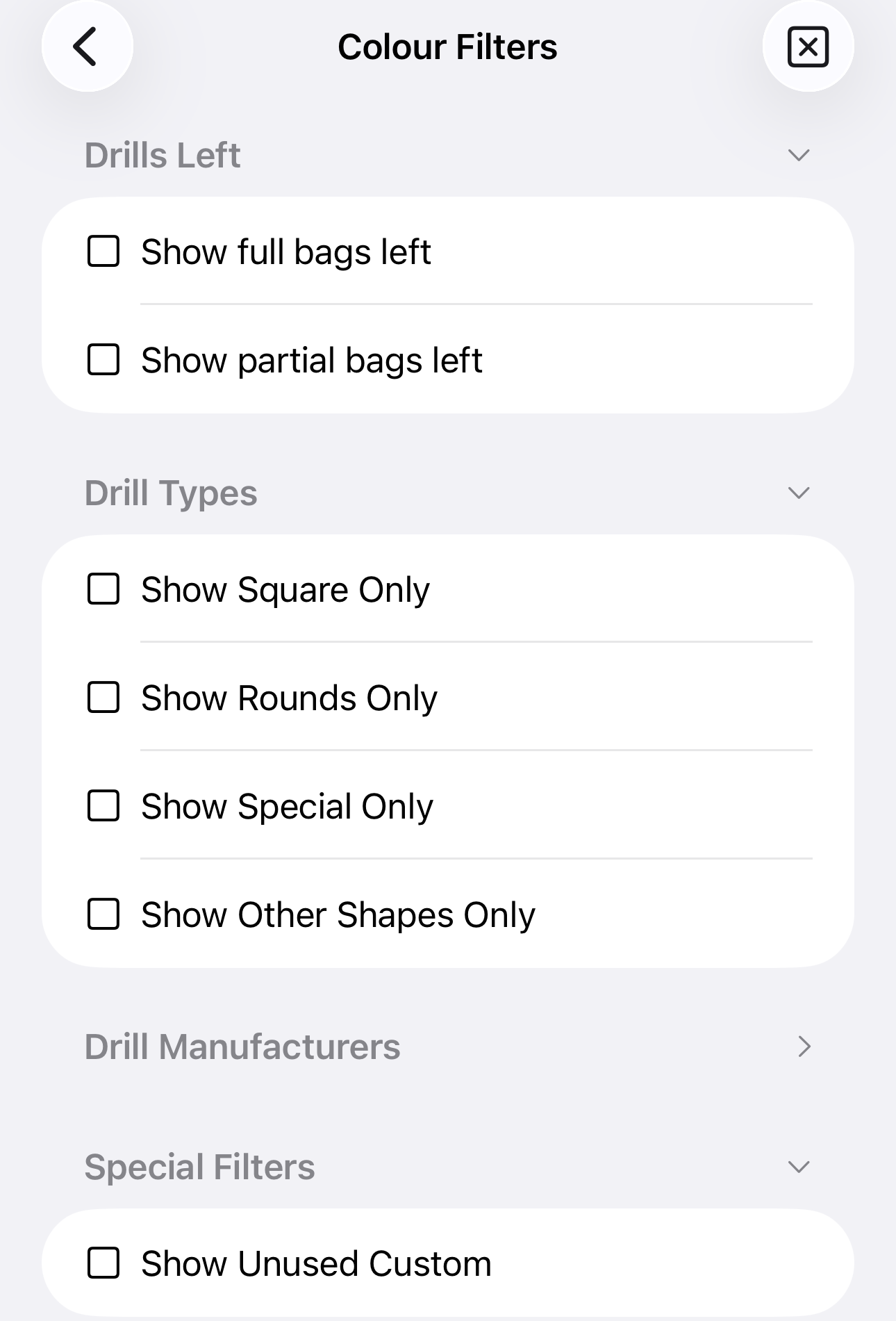
  4. If you wish to, you can use the filter to get colours that match specific criteria


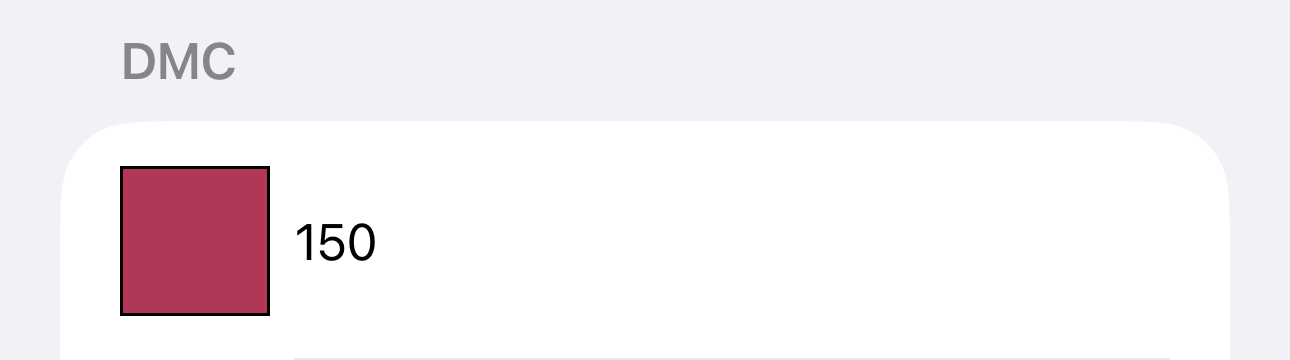
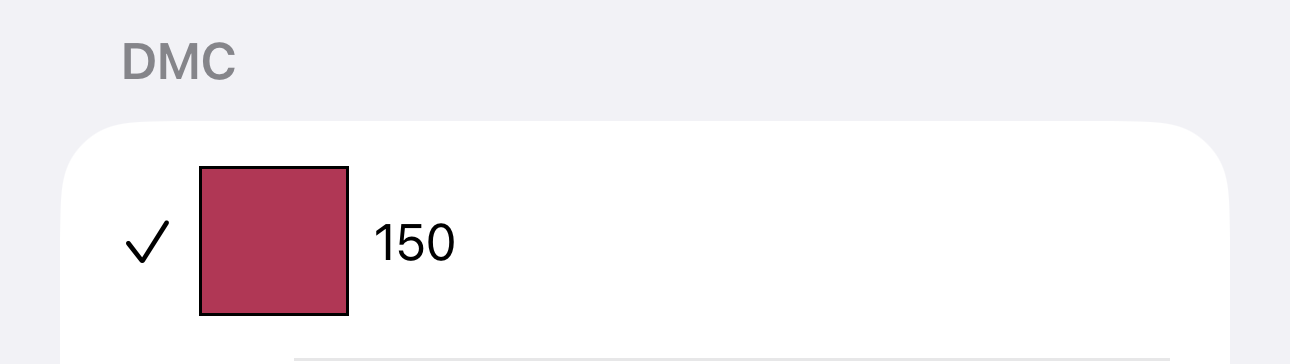
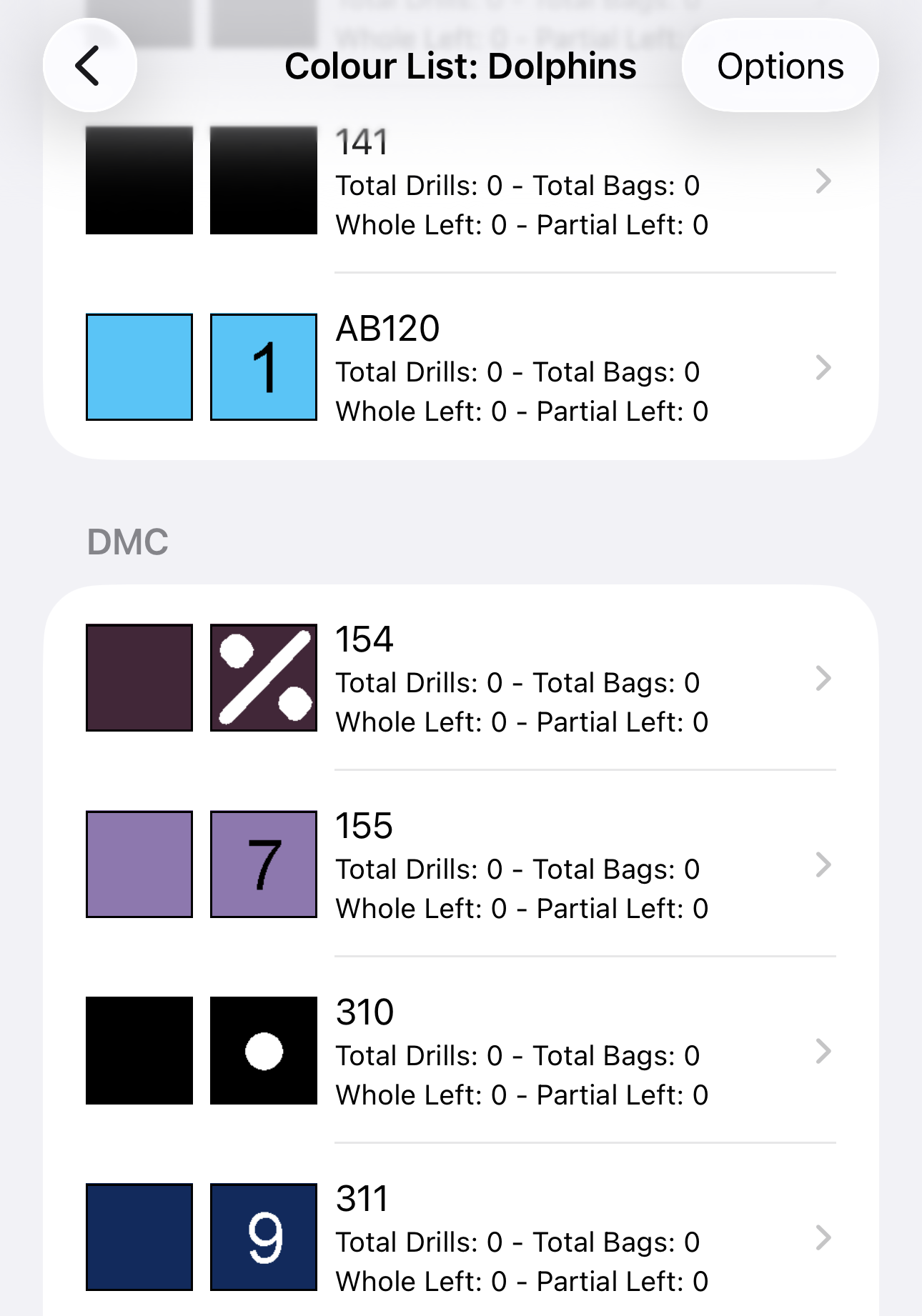
  5. You will be given a list of colours, select the colour row to add/remove the colour from the project. They are automatically saved when selected
    Colour that hasn't been added Colour that has been added


  6. Upon selecting back, you'll now see the list of added colours updated.

2025-12-14 19:26
Ceri Turner

How Do I Mass Add Colours To A Project (Version 2)?

Follow the below to add multiple colours to a project

  1. Select the project you wish to update the colours for

  2. Under the Colours section, select Colour List


  3. Select Options, then Edit Colours
    Select Options Select Edit Colours


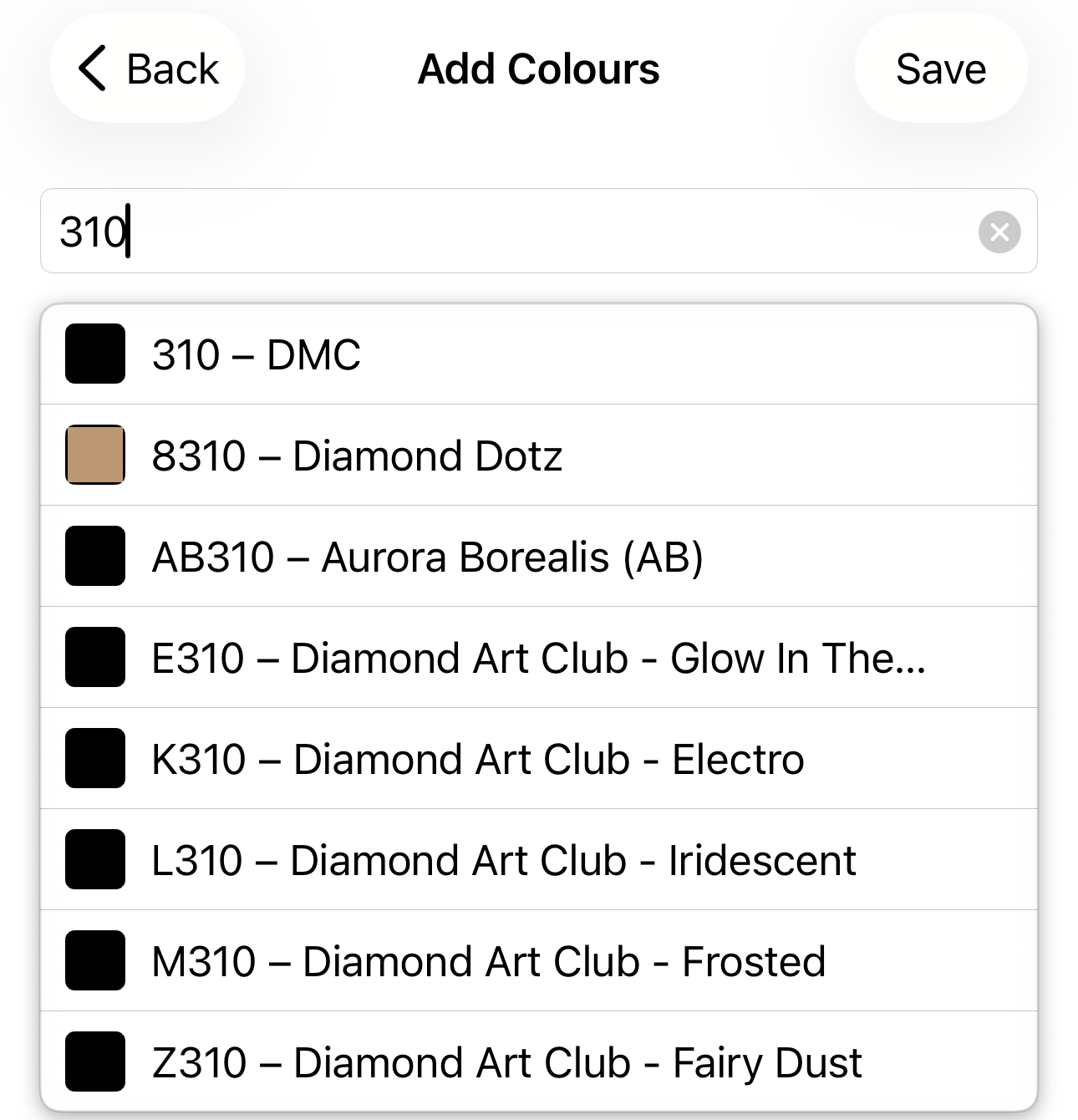
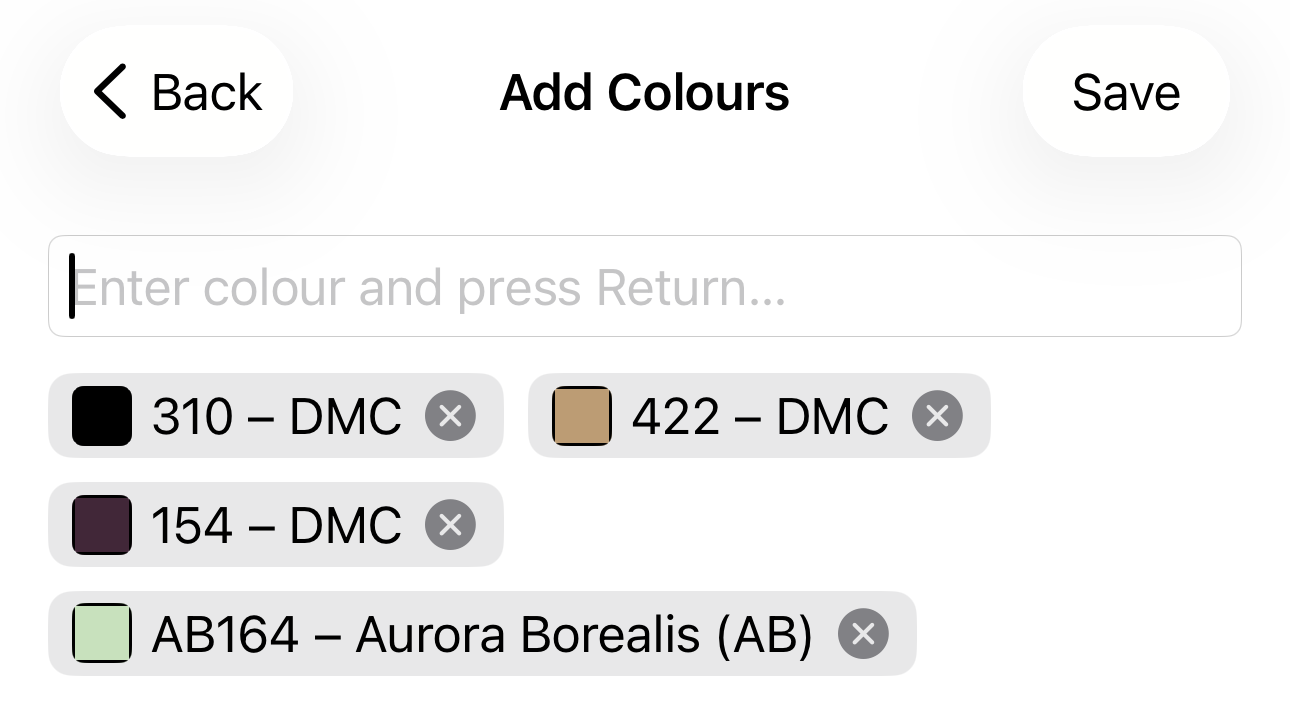
  4. Your will get a screen with a search bar, search for the colour you wish to add


  5. Add multiple colours this way (note they aren't saved yet)


  6. Press Save, then you'll be sent back to the previous screen showing the colours which have been added

2025-12-14 19:41
Ceri Turner

How Do I Add Colours To A Project From An Image (Version 2)?

Follow the below to add colours from an image. This assumes you've already added an image

  1. Select the project you wish to update the colours for

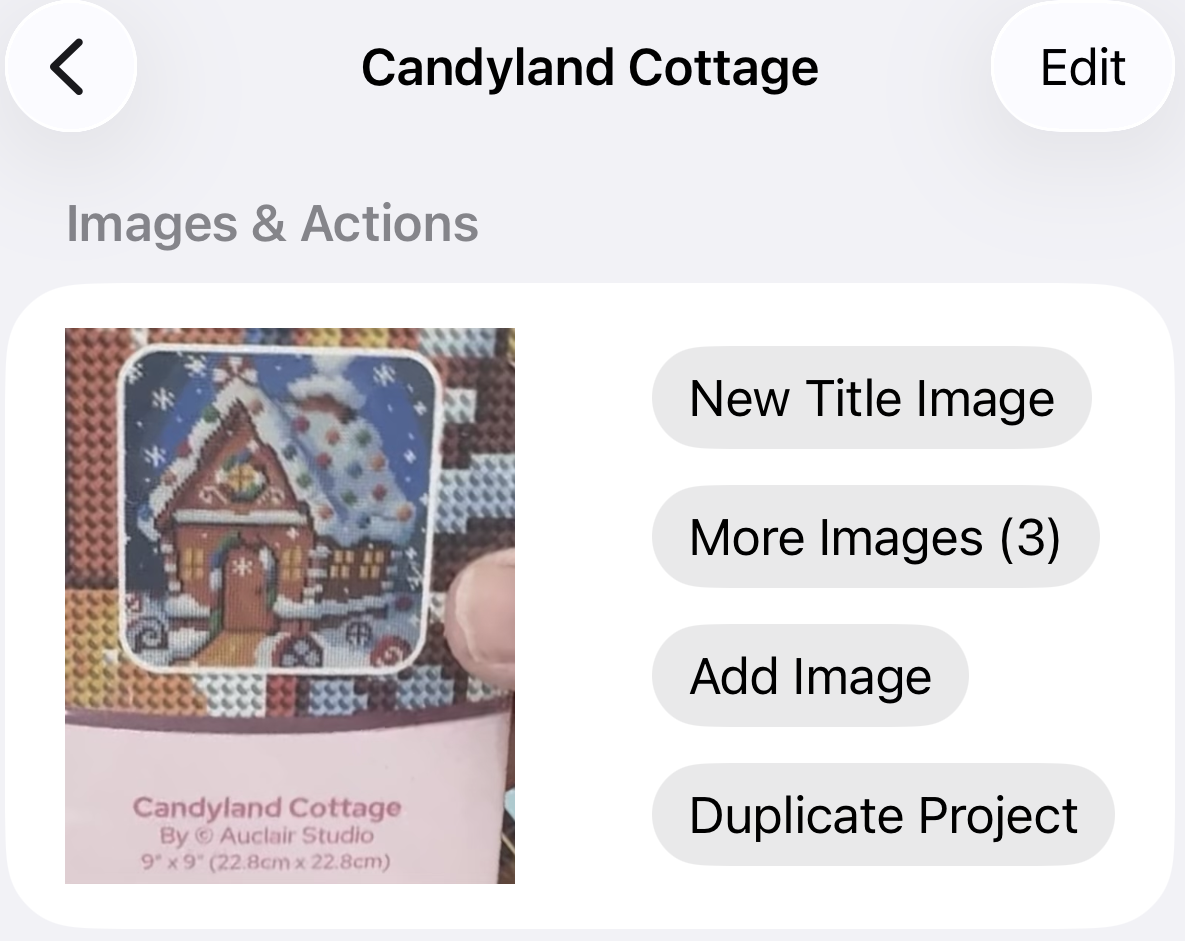
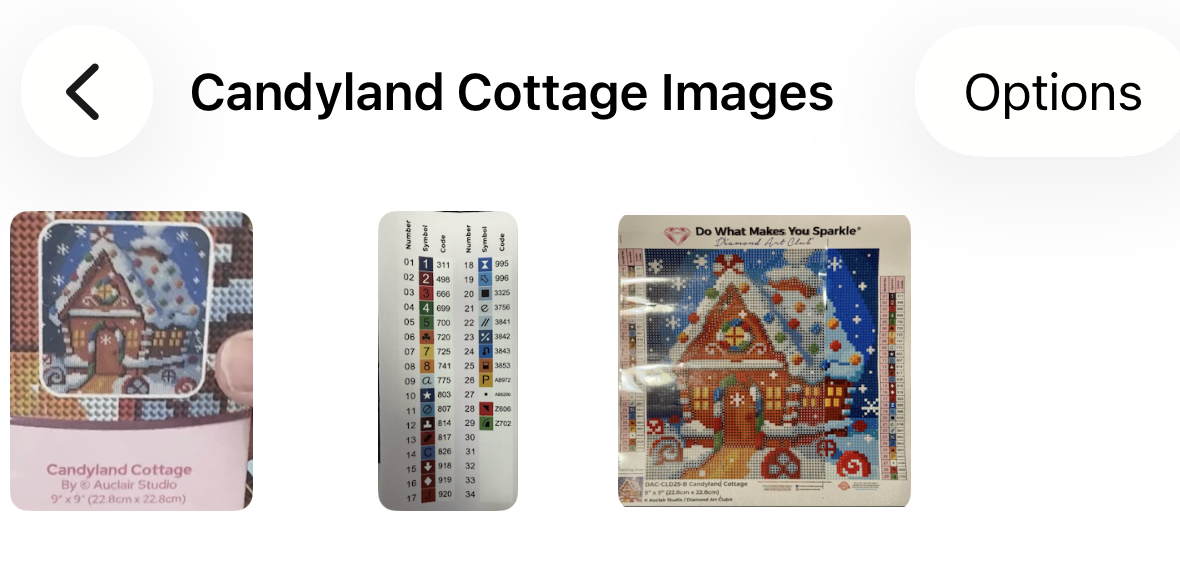
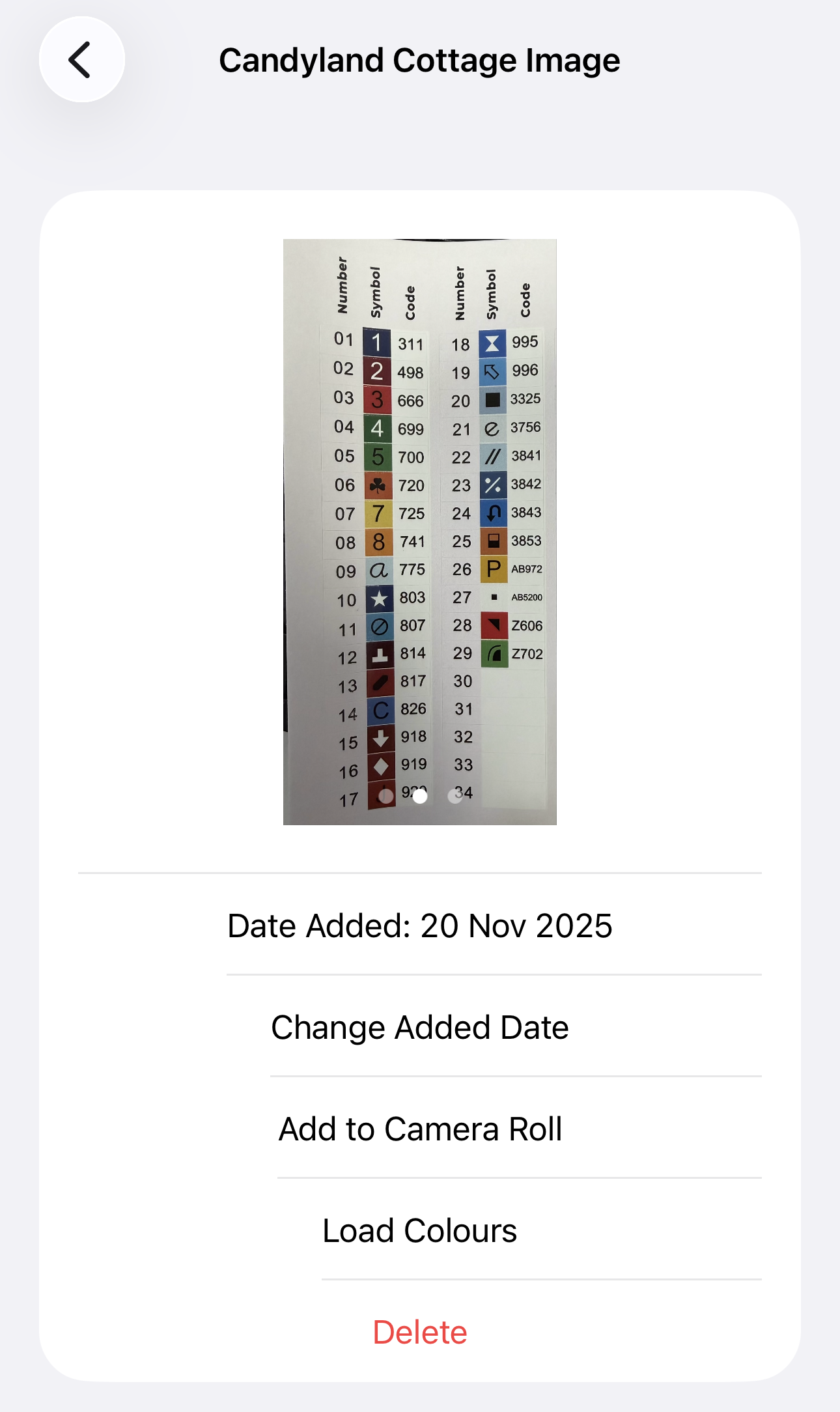
  2. Select the More Images option


  3. Select the image that has the colour list you want to add


  4. Select the Load Colours option


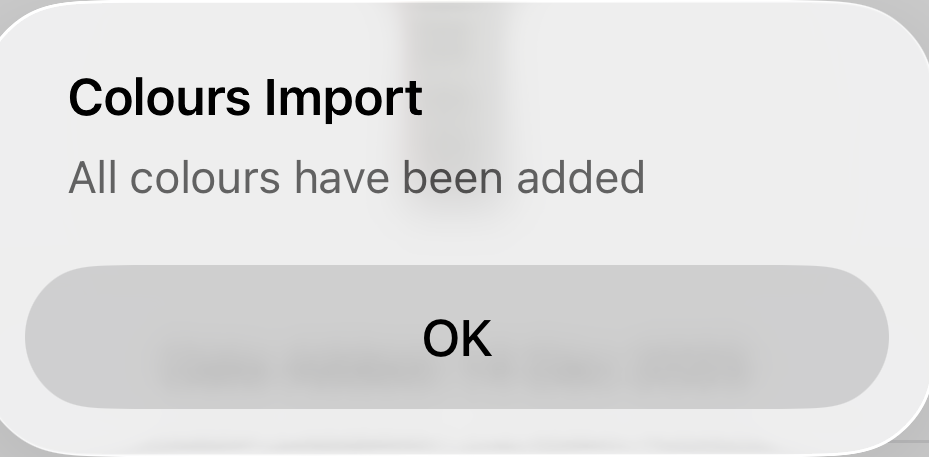
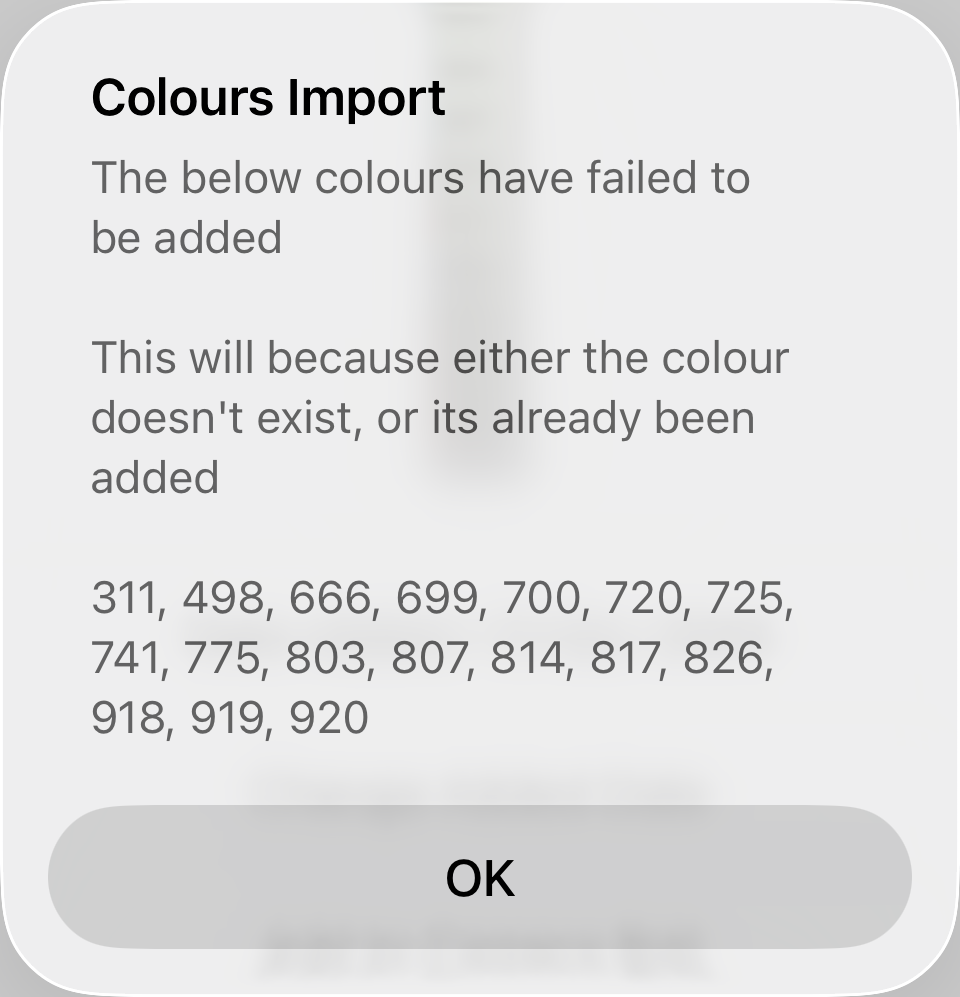
  5. You will then get a successfully imported message, or a failure message. A failure message will list which colours failed to import

    Success Message Failure Message


2025-12-14 21:50
Ceri Turner

Colours

Go to category

How do I add left over colours? (Version 1)

In order to add left over colours they must have been added to a project first.

  1. Go to the project you wish to add the spares to, then select the Colour List option
  2. If the list is blank, you will need to select Edit, then edit colours, otherwise go to Step 4

  3. Select the colours you wish to add. Those that are added will appear with a tick against them. Once that have all been selected, go back


  4. In the colours list, there will be two text fields, Whole bags and Partial bags. Enter the values here.
  5. They will now appear in the colours list

2025-12-14 17:32
Ceri Turner

How do I add left over colours? (Version 2)

In order to add left over colours they must have been added to a project first.

  1. Go to the project you wish to add the spares to, then select the Colour List option
  2. If the list is blank, you will need to select Options, then either Mass Add Colours, or Edit Colours (Please see the Adding Colours Tutorial for full instructions), otherwise skip this step and go to 3
    Select Options Select either Mass Add or Edit
  3. There are two ways to change the number of leftover bags. 

  4. To change all at once, you can select on Options, then on Set All Full/Partial to One
    Select Options Seelct either of the Set to 1 buttons


  5. To set colours individually, select on the colour you wish to change


  6. This will load another view, where you can se the details of the colour

2025-12-14 18:19
Ceri Turner

How Do I Add Colours To A Project (Version 2)?

There are multiple ways to add colours to a project. Select the option below to see the specific method for that way

Manually
Mass Adding
Automatic Adding
From Images

2025-12-14 21:51
Ceri Turner

How Do I Manually Update Colours In A Project (Version 2)?

Follow the below to manually add/remove colours from a project

  1. Select the project you wish to update the colours for

  2. Under the Colours section, select Colour List


  3. Select Options, then Edit Colours
    Select Options Select Edit Colours


  4. If you wish to, you can use the filter to get colours that match specific criteria


  5. You will be given a list of colours, select the colour row to add/remove the colour from the project. They are automatically saved when selected
    Colour that hasn't been added Colour that has been added


  6. Upon selecting back, you'll now see the list of added colours updated.

2025-12-14 19:26
Ceri Turner

How Do I Mass Add Colours To A Project (Version 2)?

Follow the below to add multiple colours to a project

  1. Select the project you wish to update the colours for

  2. Under the Colours section, select Colour List


  3. Select Options, then Edit Colours
    Select Options Select Edit Colours


  4. Your will get a screen with a search bar, search for the colour you wish to add


  5. Add multiple colours this way (note they aren't saved yet)


  6. Press Save, then you'll be sent back to the previous screen showing the colours which have been added

2025-12-14 19:41
Ceri Turner

How Do I Add Colours To A Project From An Image (Version 2)?

Follow the below to add colours from an image. This assumes you've already added an image

  1. Select the project you wish to update the colours for

  2. Select the More Images option


  3. Select the image that has the colour list you want to add


  4. Select the Load Colours option


  5. You will then get a successfully imported message, or a failure message. A failure message will list which colours failed to import

    Success Message Failure Message


2025-12-14 21:50
Ceri Turner

General

Go to category

Changelog - Version 1

Version 1.12.3
Released: TBC

  • New Features
    • Added ability to rename custom colours
  • Bug Fixes
    •  

Version 1.12.2
Released: 7th December 2025

  • New Features
    • A new search option (customEmpty) for filtering custom colours that aren't used
    • Whats new can be viewed from the about screen
    • Stats have been moved to their own screen, still accessible from the About Screen
    • Updated the mass add to ask if you want to add more, rather than straight dismissing
    • Ability to set a custom time frame for Time Today for Projects
  • Bug Fixes
    •  

Version 1.12.1
Released: 12th November 2025

  • New Features
    • Whats new shows for new versions
    • Quick actions now show started times for projects in any status, not just started
    • Added the ability to suggest and vote on new features. Available from the About screen
  • Bug Fixes
    • Corrected the way it works out total number of drills in a project
    • When copying project information it no longer copies fields which are empty

Version 1.12
Released: 2nd November 2025

  • New Features
    • Added ability to add multiple new colours at once
    • Added a new way to add colours from images (From Project Colours edit button)
    • Updated mass adding colours
  • Bug Fixes
    • If a project has an active time, it will always show on the quick actions

Version 1.11.8
Released: 31st August 2025

  • New Features
    • Added ability to remove all colours in a project
    • Adding/Ending time from home screen now opens the project view
    • Time now lists total break length 
    • Added ability to copy several details from a project at once
  • Bug Fixes
    • Hide Size & Total Days if empty

Version 1.11.7
Released: 27th May 2025

  • Bug Fixes
    • Updated Manufacturer for custom colours (in preperation for V2)
    • Colour list now reloads now when adding a custom colour

Version 1.11.6
Released: 25th May 2025

  • Bug Fixes
    • Current working time doesn't take into account breaks which aren't finished yet
    • When copying size it shows name copied. Correct data is copied though
    • Fixes duplicate album being created

Version 1.11.5
Released: 18th May 2025

  • New Features
    • Ability to copy project size
    • Ability to export all photos in an album
    • Ability to edit the add date of photos

Version 1.11.4
Released: 12th May 2025

  • New Features
    • Exporting photos now exports to a separate album called Diamond Painting Logbook
    • Project details show how long its been worked on today without having to view all hours.

Version 1.11.3
Released: 28th April 2025

  • New Features
    • Added ability to copy the colour list
    • Added time since started the current session
  • Bug Fixes
    • Fixed the Set Received Today option not unhiding the field

Version 1.11.2
Released: 8th November 2024

  • New Features
    • Added images for Diamond Dotz
    • Added ability to set the status to received from the project detail view
    • Added ability to search projects based on where they were obtained

Version 1.11.1
Released: 28 October 2024

  • New Features
    • Added a total time worked stat to the about page
  • Bug Fixes
    • Updated FAQ link

Version 1.11
Released: 19 Oct 2024 

  • New Features
    • Added ability to duplicate a project
    • Added ability copy other information direct from the project screen (Name, Cost, Obtained From)
    • Added the clear option to the Obtained From URL Field

Version 1.10.16
Released: 31 Dec 2023

  • New Features
    • Added ability to see total number of days a project has been worked on

Version 1.10.15

  • New Features
    • Ability to add colours directly from an image

Version 1.10.14

  • New Features
    • Shortcuts added when long pressing app icon: Add a project, Start and Ending times for started projects
    • Added Ability to save images back to the camera roll
    • Added ability to copy the total time when the cell is tapped on
  • Bug Fuxes
    • Fixed a crash when selecting the tab for Projects, Colours and Wishlist when not on the list or details screens

Version 1.10.13

  • New Features
    • See at a glance how many projects use a specific colour
    • Store the total number of bags/drills received
    • Project list shows the total time spent on the project
    • Code updated for iOS14
    • Updated interface for dates when editing projects

Version 1.10.12

  • New Features
    • Added ability to add new images directly from the project screen
    • Updated the AB drill names
    • Added ability to add breaks to a time

Version 1.10.11

  • Bug Fixes
    • Missing AB colours added
    • Fixed issue with Date Dispatched field loosing its hidden status when editing a project if there was no date entered

Version 1.10.10

  • New Features
    • Can now swap between daily and monthly grouping on the times screen
  • Bug Fixes
    • Fixed issue with date dispached on the edit project screen

Version 1.10.9

  • Bug Fixes
    • Added missing AB colours (126,128,136)

Version 1.10.8

  • Fixed grouping issue with the times log when times span two different years

Version 1.10.7

  • New Features
    • Colours and Wish List now scroll to the top when the tab is selected a second time
    • Ability to delete hours logged
    • Times logs now group by month and give the total time per month
  • Bug Fixes
    • Improved the was stauses are loaded when adding or editing a project
    • Wish list now uses the correct status when adding a new project

Version 1.10.6

  • New Features
    • Keyboard now disappears when clearing a search field
    • New Status - Lost
    • Colour list now shows drill type even if it doesn't have spares listed
  • Bug Fixes
    • Fixed issue with dark mode on the colour list
    • Fixed crash on retyrning to the project list if there are no projects
    • Fixed missing 5200 image

Version 1.10.5

  • New Features
    • Added new statuses - Kitted Up and Sold - Not Completed

Version 1.10.4

  • New Features
    • When adding colours to a project they now show the manufacturer

Version 1.10.3

  • New Features
    • Added option to record the date it was dispatched
    • Added new stat (total spent) in the about screen
    • Project detail now shows the number of images
  • Bug Fixes
    • Fixed a bug with colour highlighting on the colours list

Version 1.10.2

  • New Features
    • New statuses added: On Hold and Gifted
  • Bug Fixes
    • Bug fixed on the today option onedit project no unhiding the field

Version 1.10.1

  • New Features
    • Updated Project Details so it shows both CM and Inches
    • Updated Project List to show both CM and Inches
    • Updated Collours used when device is in dark mode
  • Bug Fixes
    • Fixed a bug with hidden fields when adding a new project
    • Fixed issue where multiple images added showed the unedited pictures 

Version 1.10

  • New Features
    • Added ability to hide fields that aren't in use
    • Added AB drills

Version 1.9.2

  • Bug Fixes
    • Updated for iOS9

Version 1.9.1

  • Bug Fixes
    • Various bug fixes

Version 1.9

  • New Features
    • Added ability to change project thumbnail
    • Added Diamond Dotz colours 5001, 5005, 5006

Version 1.8

  • New Features
    • New colours added - Diamond Dotz
    • New search keywords added - DMC, Diamond Dotz

Version 1.7

  • New Features
    • Changed the way of adding puctures from your gallery, can now select and add multiple pictures at once
  • Bug Fixes
    • Scrolling now works on the project colours screen for the bottom numbers

Version 1.6

  • New Features
    • Seperated Cost into Item and Shipping
    • Added option to add purcahsed from URL and to open URL directly from the app

Version 1.5

  • Bug Fixes
    • Fixed crash on the project view if total drills is too large

2025-12-14 18:23
Ceri Turner
Changelog - Version 2

Version 2

Includes all features of version 1 plus

  • New features
    • Complete rewrite of the app
    • Cloud Syncing
    • Diamond Art Club colours added
    • Added more information that can be added - Artist Name, Tracking Number
    • Notifications if you've left a time or break session running.
      • Times can be adjusted from the about screen. 
    • Project search now searches where you got it from as well
    • Can now set items received from the detail screen rather than having to go to the edit screen.
      • Only shows for projects in the Not Received status
    • Pictures are now thumbnails, allowing quicker loading.
      • Full quality images are still saved when exporting to the camera roll
    • Tracking Accessories
    • More Filtering options
    • More stats added to the about screen
    • New Icon
      New Icon Old Icon
    • Colour for custom colours can now be defined
    • Symbols can be assigned to colours in a project
    • Integeration with Piwigo
    • Time list and break list mark if a time/break is active or on break
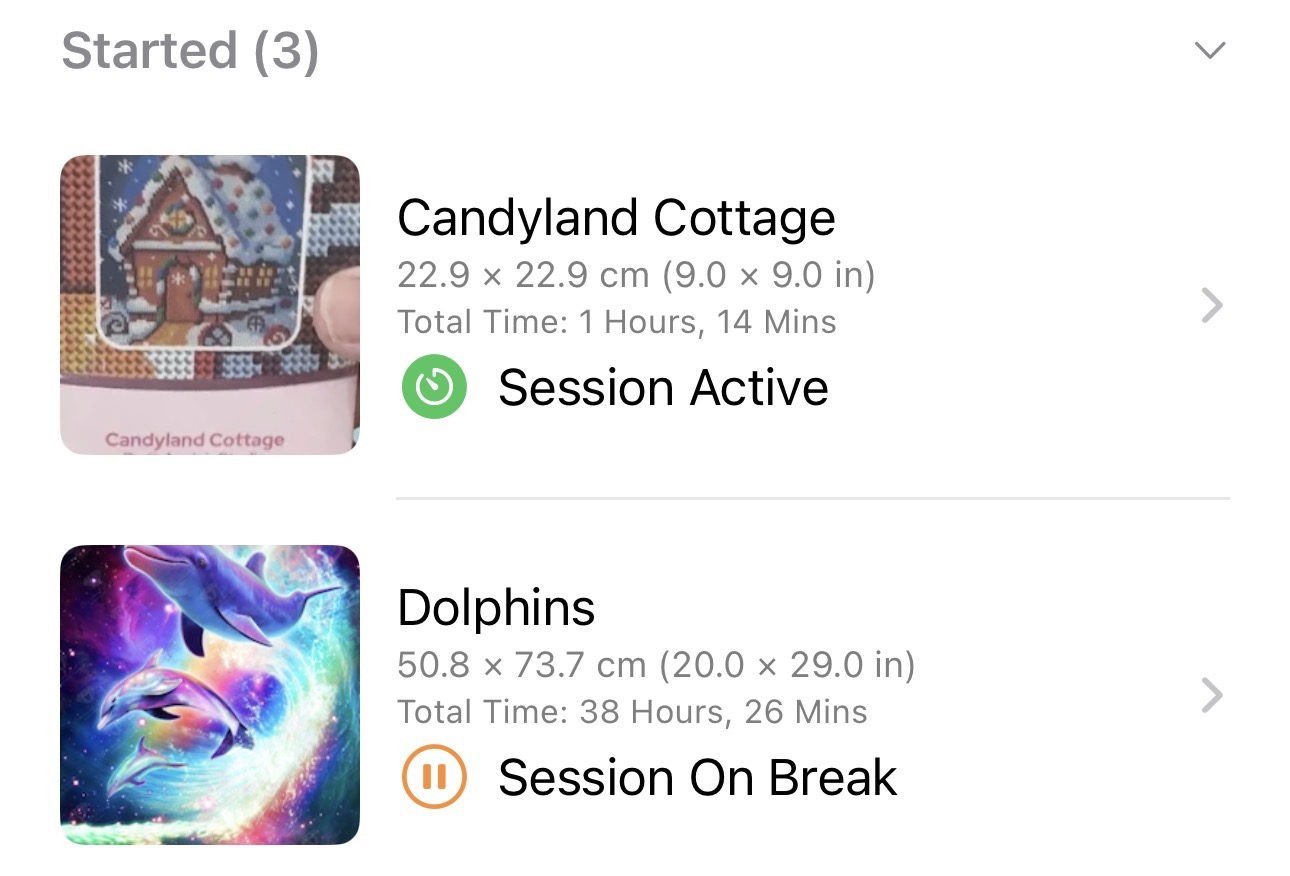
    • Project lsit shows if a project has an active or paused session
    • Ability to set a custom time frame for Time Today for Projects
  • Bug Fixes
    • Removed duplicate Diamond Dotz Colour - 8243

2025-12-13 23:33
Ceri Turner
How does syncing work? (Version 2)

Syncing is enabled in Version 2 after the inital conversions are done on the apps first launch
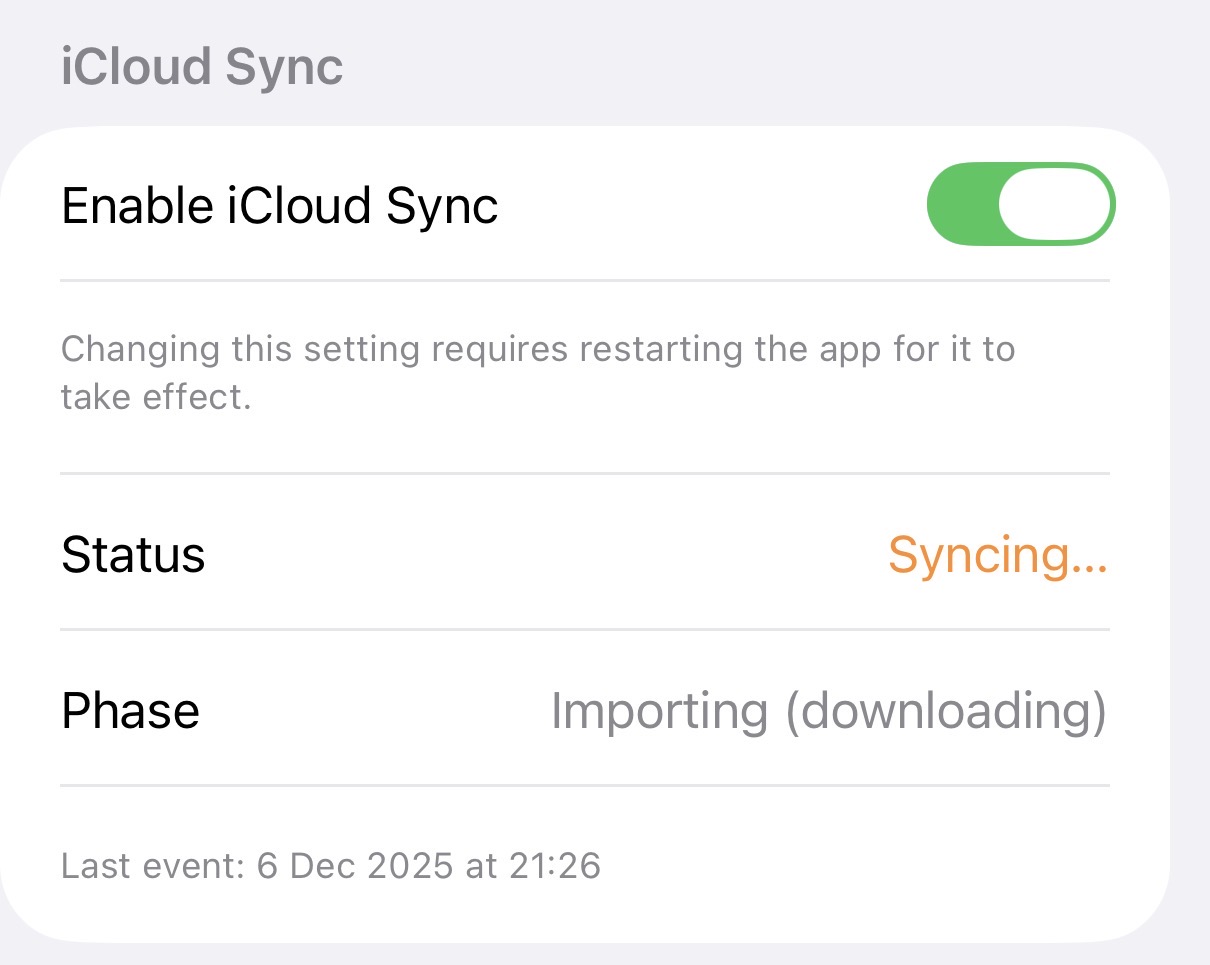
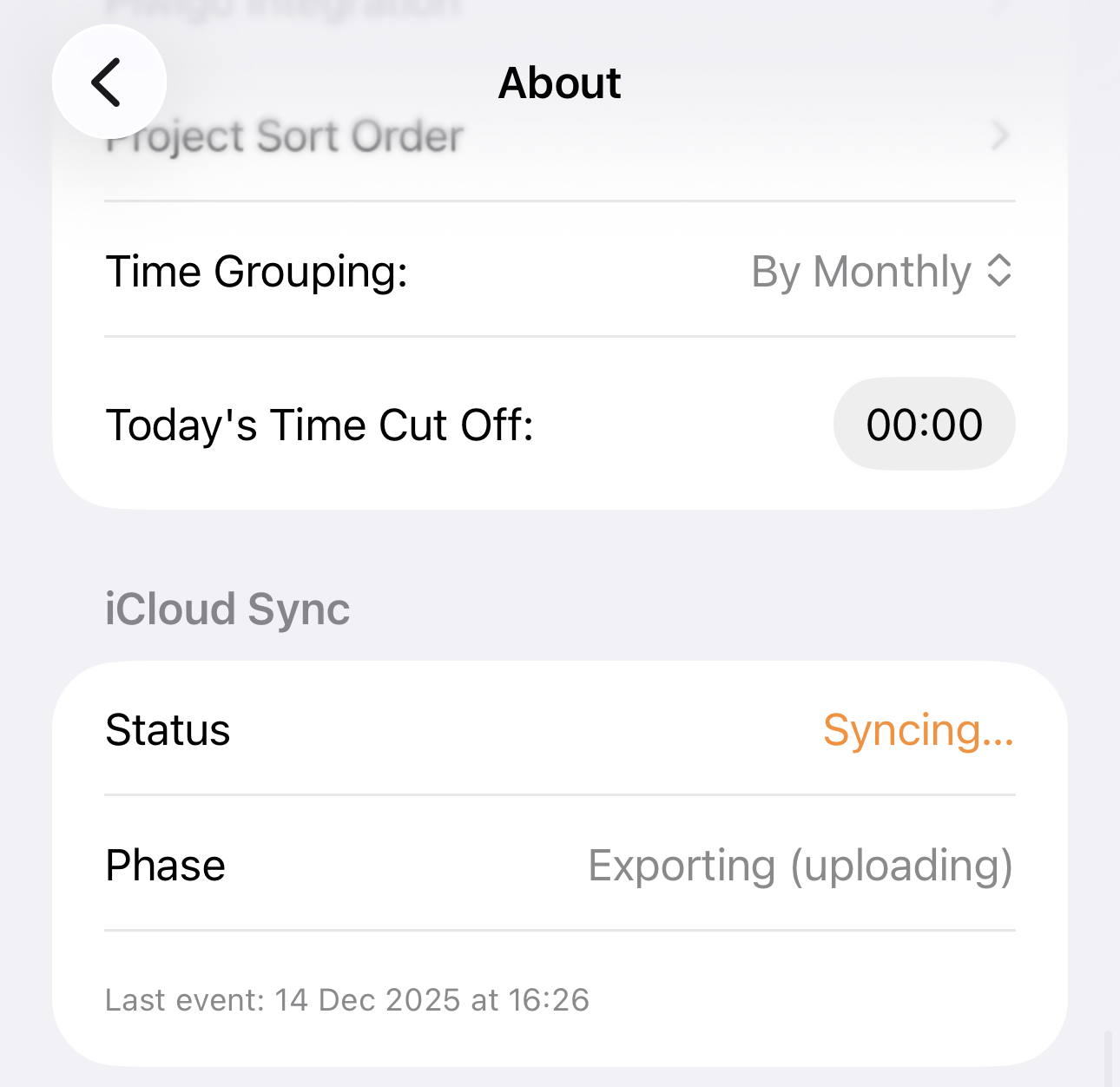
Syncing is done automatically in the backgorund, and the current status can be seen in the About screen in the iCloud Sync Section

It will list the following statuses

  • Idle - All syncs are complete
  • Syncing...
    • Importing (downloading) - Downloading changes from iCloud
    • Exporting (uploading) - Uploading changes to iCloud
    • Setup - Setting up the initial sync

Below the statuses it will show the last time the sync occured, and if there were any issues

  • Error messages show in red
  • Warnings show in orange
    • Warnings are usually a tempory issue and will clear on their own

2025-12-14 17:28
Ceri Turner