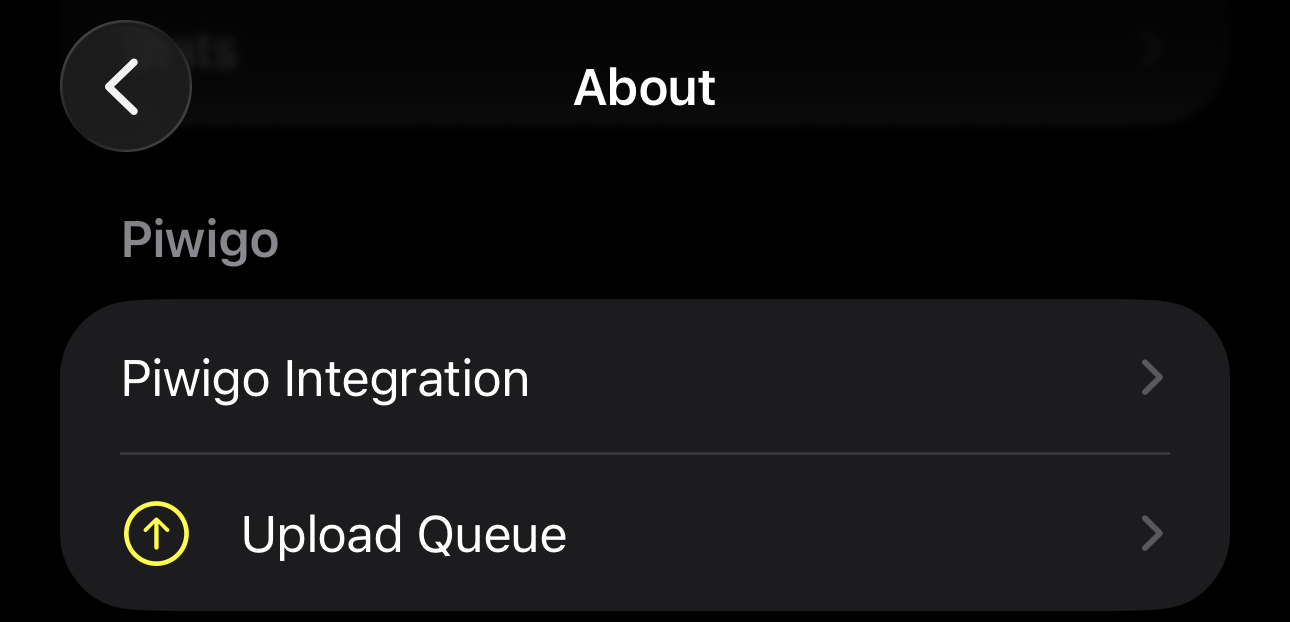
Piwigo Integration is setup from the about screen.
- From the about screen, select Piwigo Integration
- Tap the switch to turn on the integration
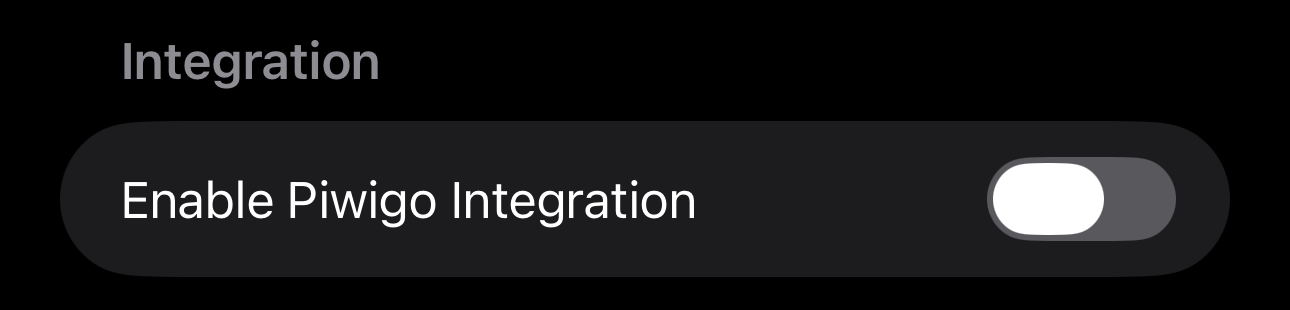
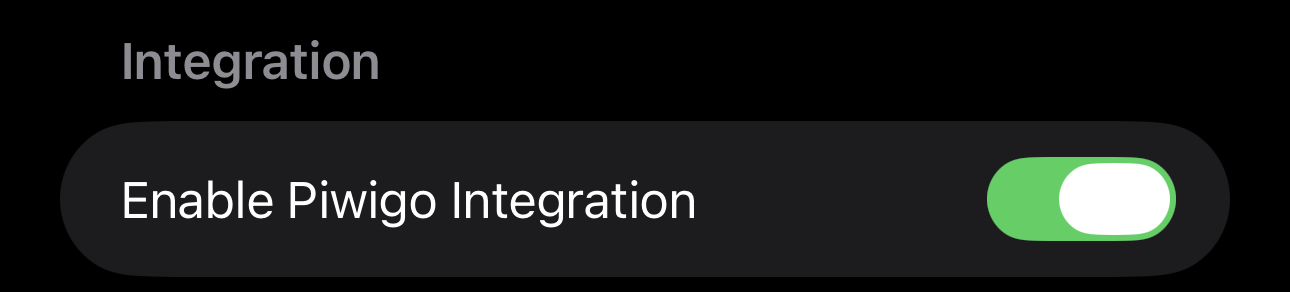
Integration Turned Off Integration Turned On - Fill out the connection details
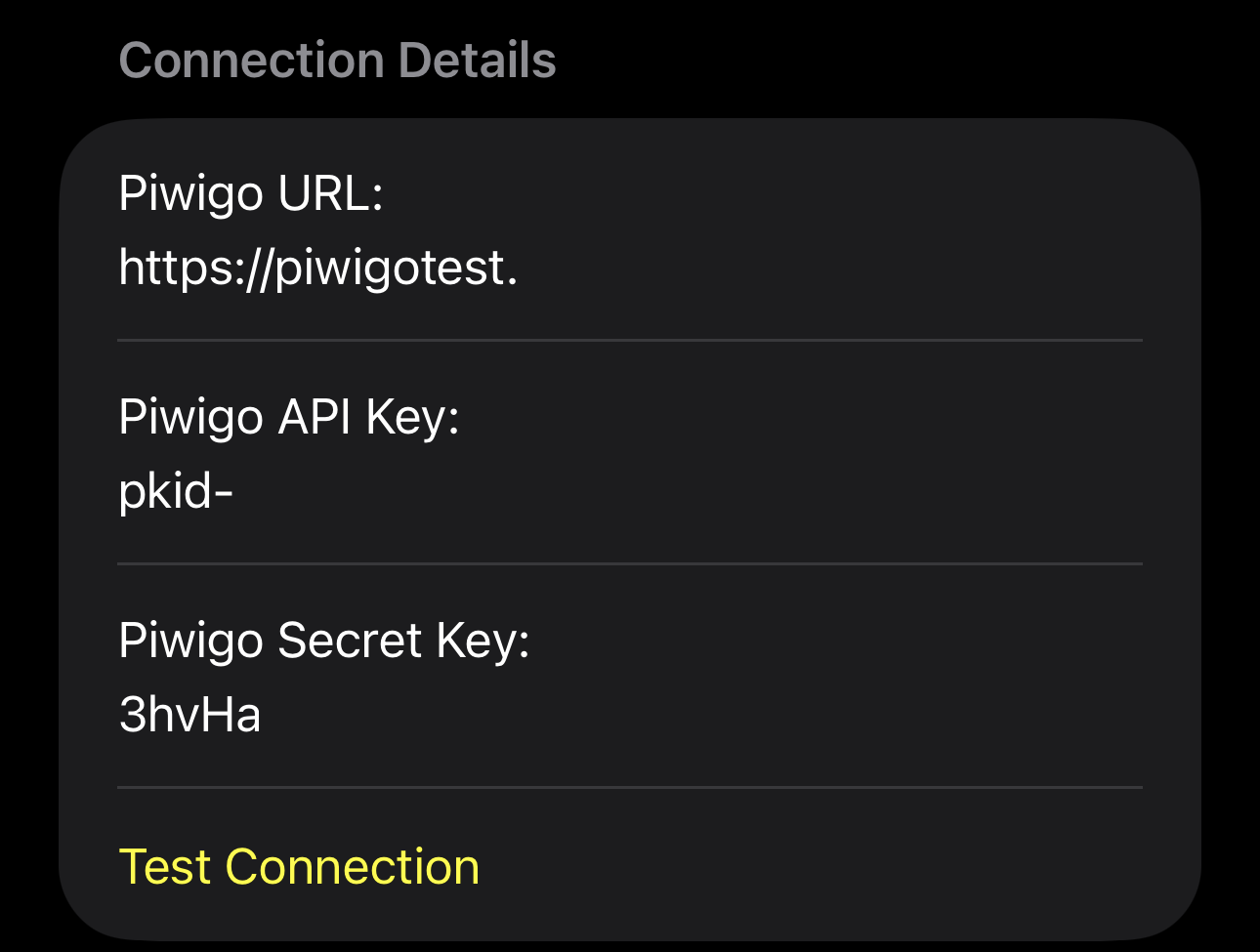
To get an API key and Secret key- Go to your Piwigo site and login
- Select the profile link
- Scroll down until you get to API Keys and expand it
- Select the New API Key button
- Give it a name, and select an expiry date
- Click Generate Key, and you'll be provided with an API and Secret key. Make sure you note these as this is the only time the secret key will be shown
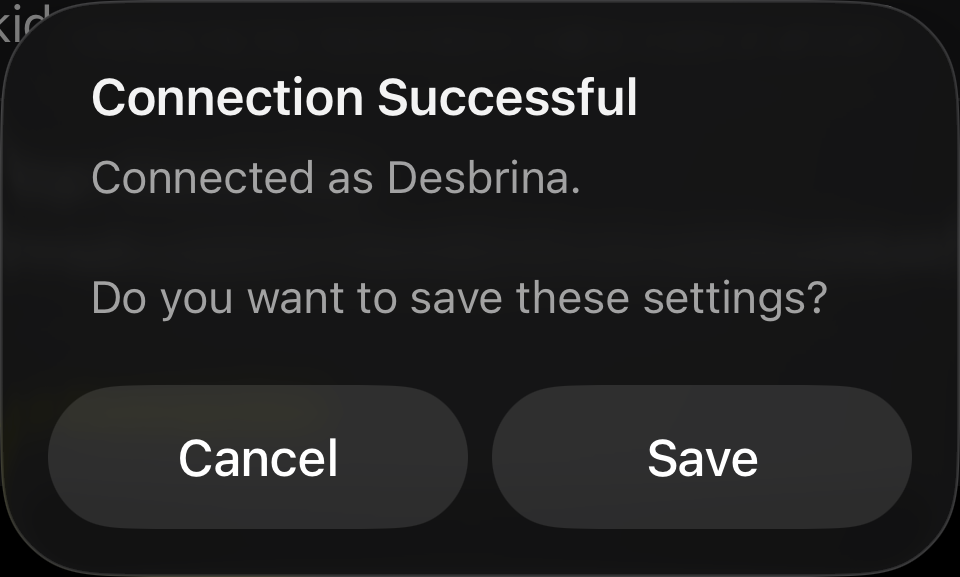
- Click Test Connection. If the details are correct, you should get a success message, and the option to save the details
- Depending on how you want it setup, you can upload to a single album, or by status
- For a single ablum, set the default album number (0 or above, 0 is the root album)
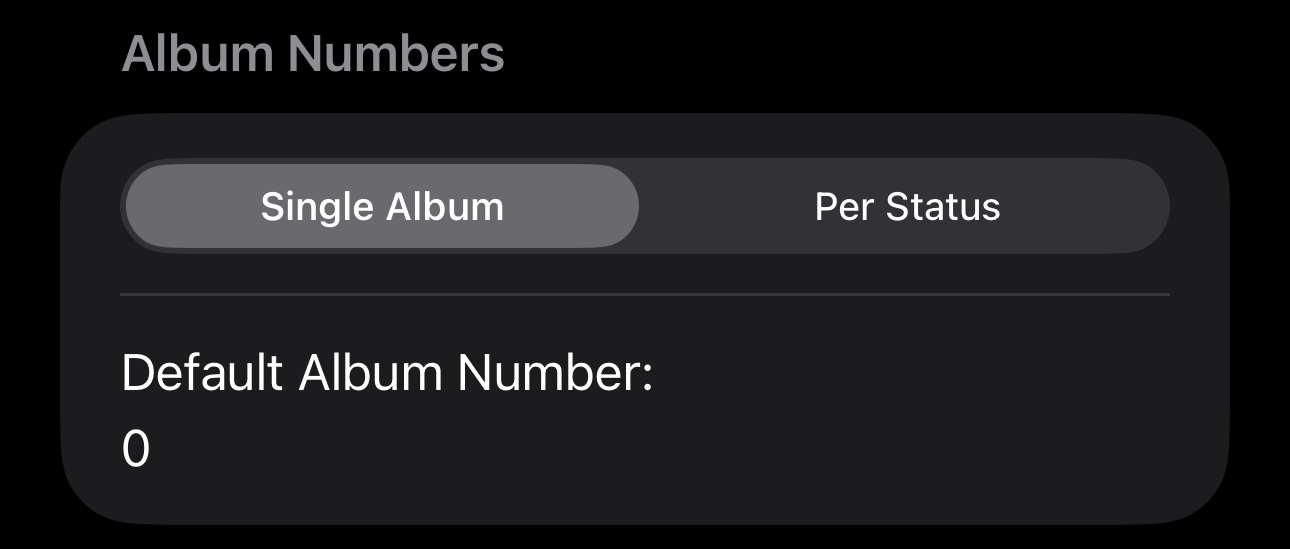
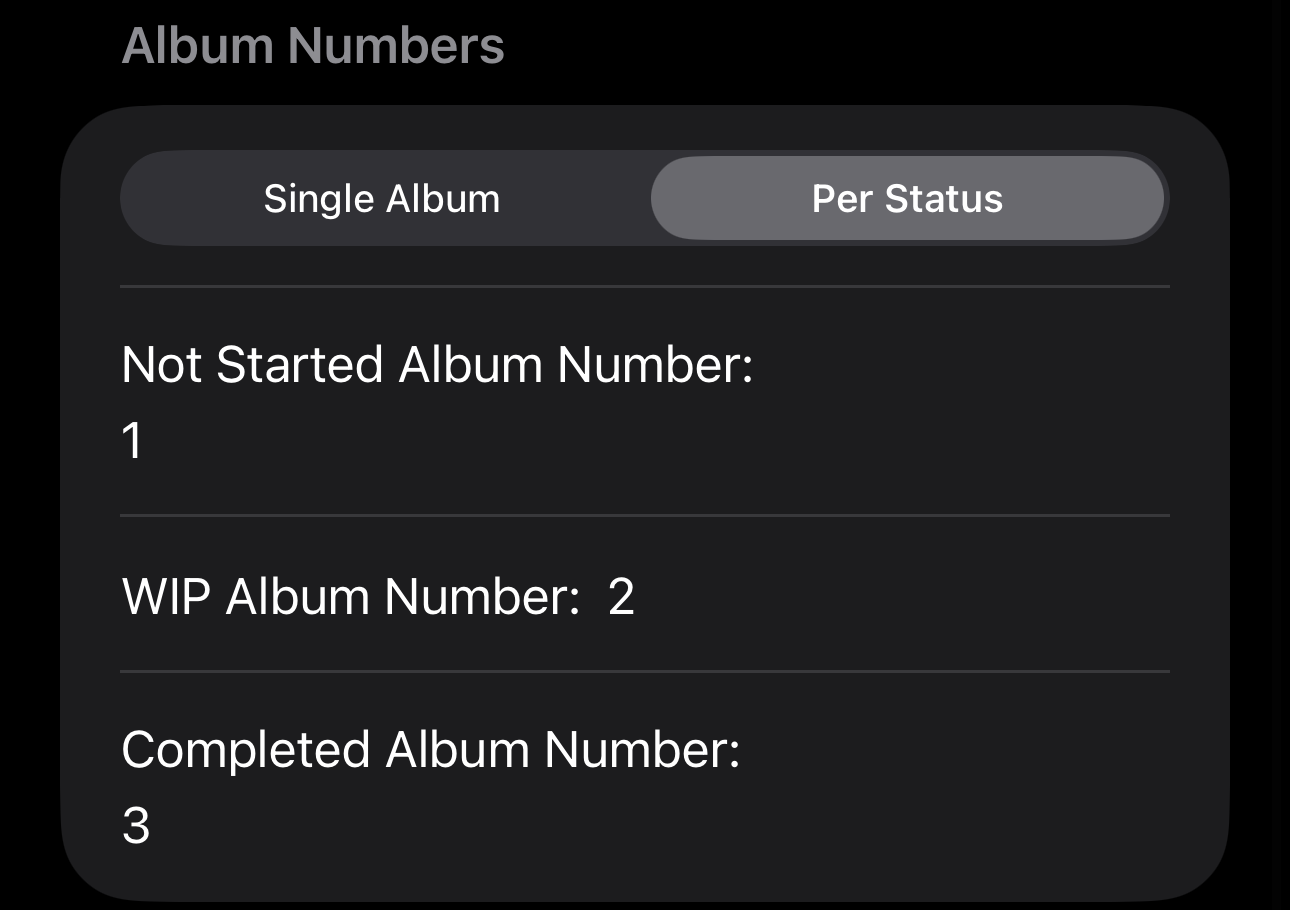
Single Album Multiple Albums - One thats done, any new projects added will autmatically generate the album in Piwigo, and any new images will be automatically uploaded.
- For any existing projects, you can use the Create Piwigo Album option to create it and upload existing files

- For any existing projects, you can use the Create Piwigo Album option to create it and upload existing files
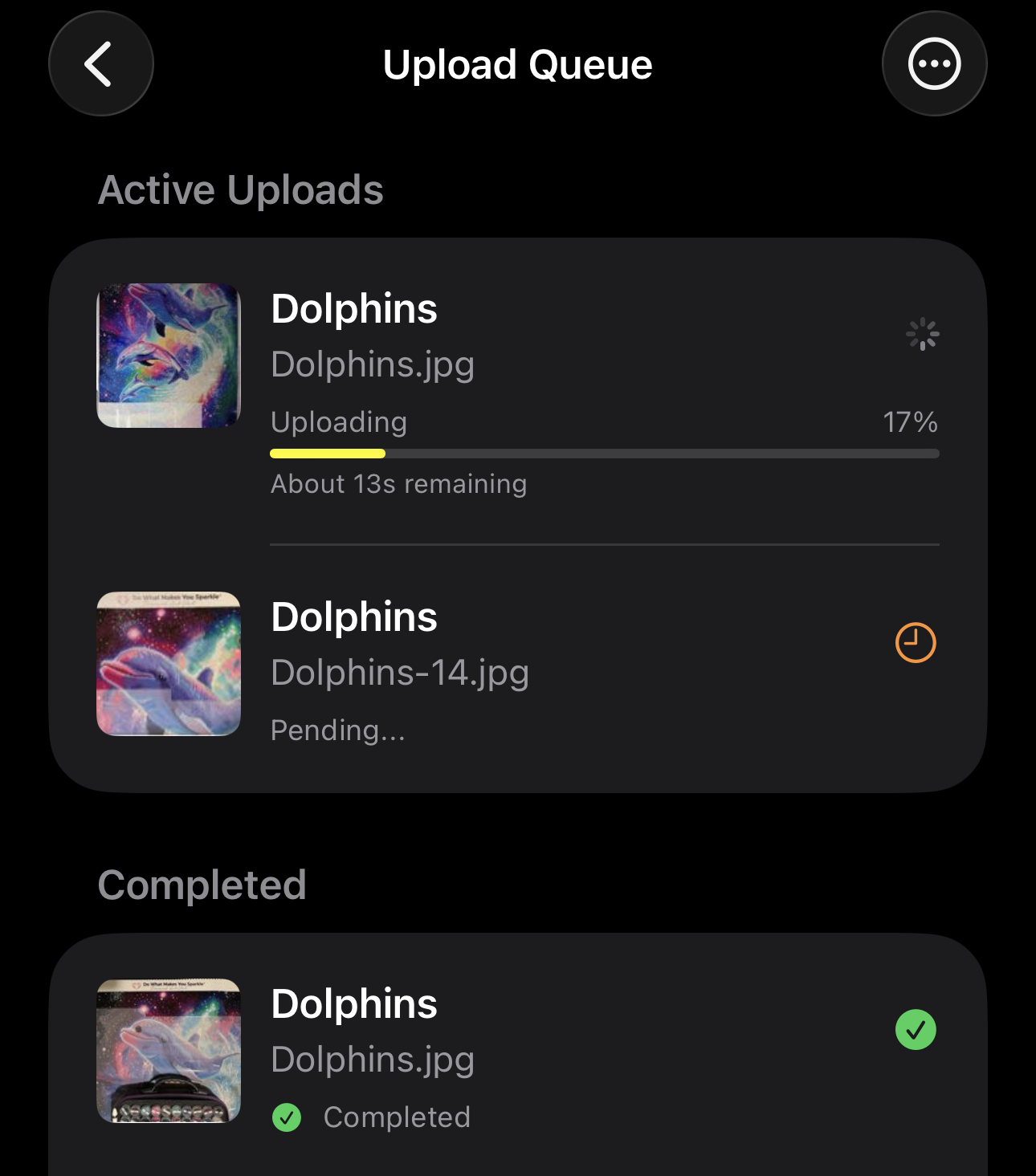
- For any files uploading, you can view their status in Upload Queue