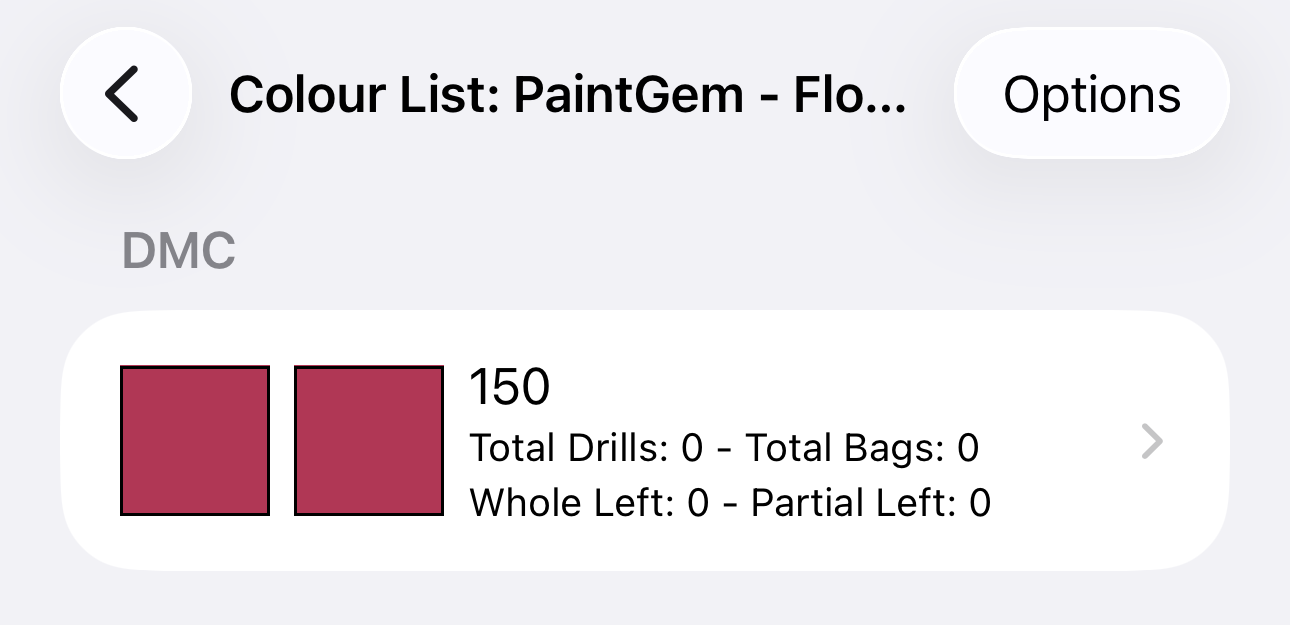
Follow the below to manually add/remove colours from a project
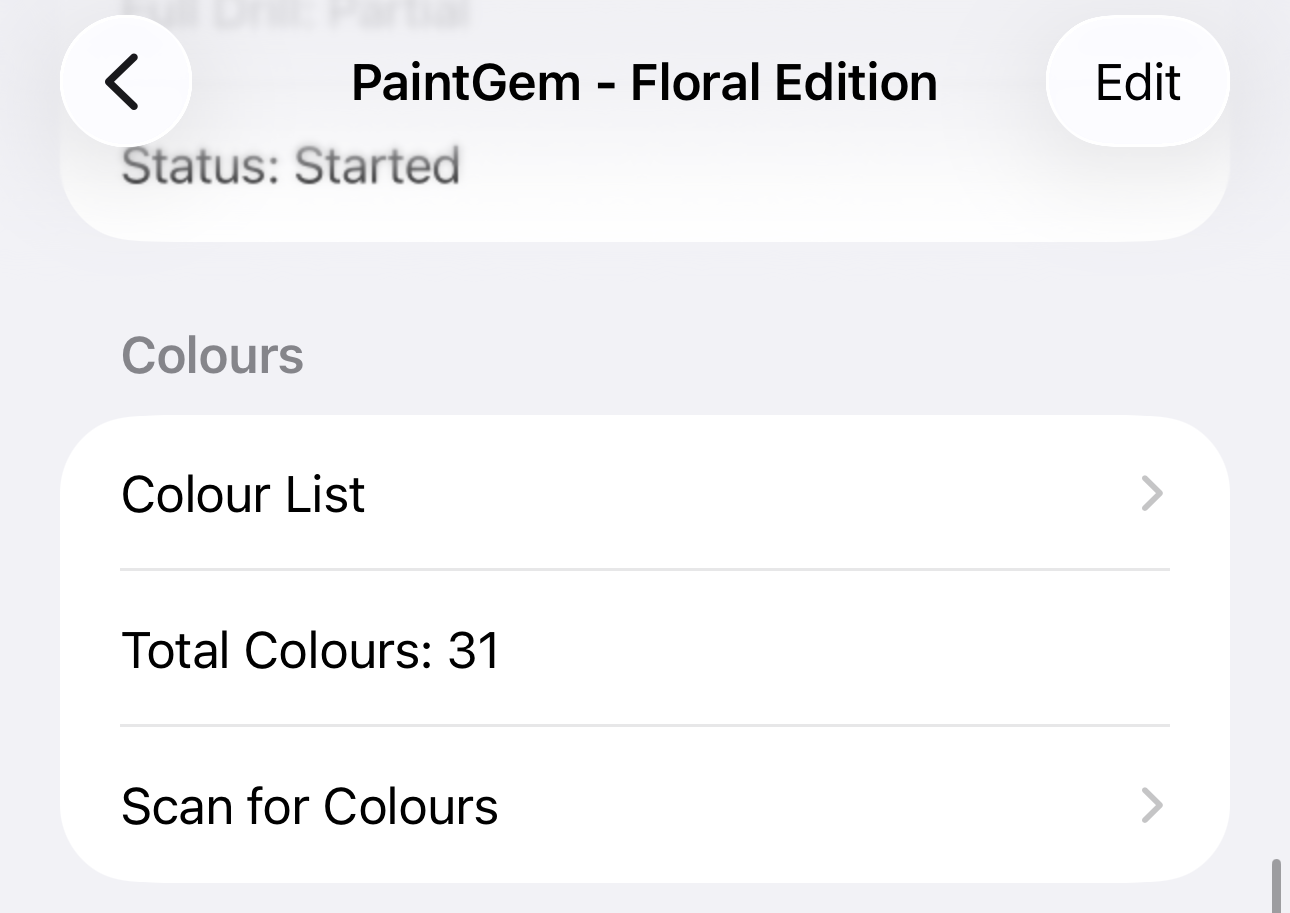
- Select the project you wish to update the colours for
- Under the Colours section, select Colour List
- Select Options, then Edit Colours

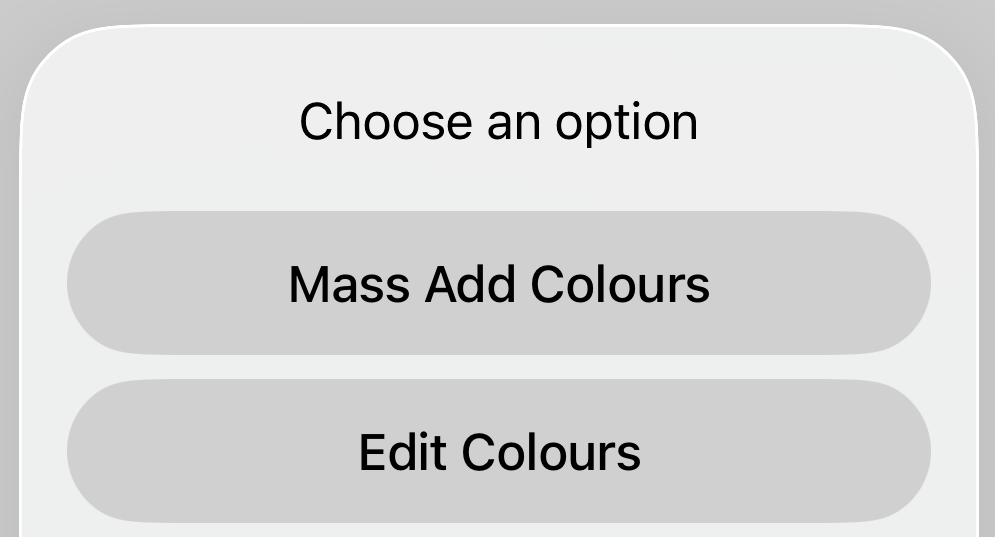
Select Options Select Edit Colours - If you wish to, you can use the filter to get colours that match specific criteria

- You will be given a list of colours, select the colour row to add/remove the colour from the project. They are automatically saved when selected
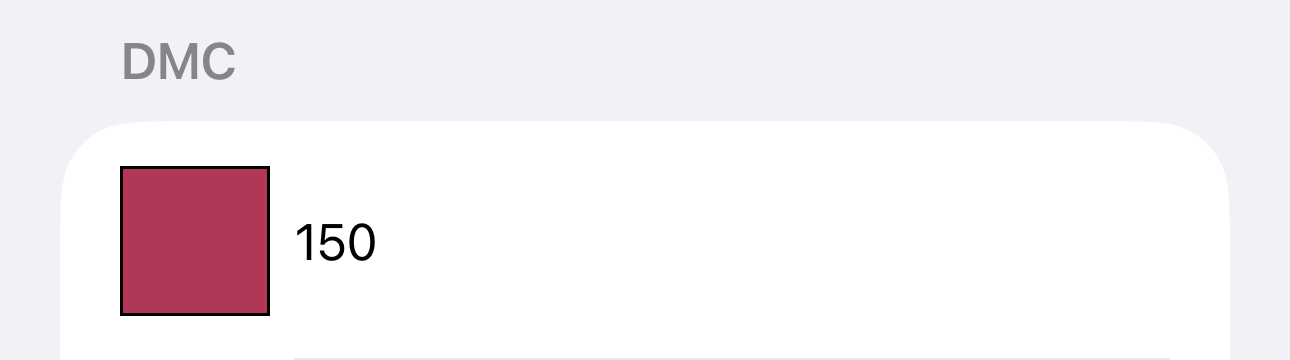
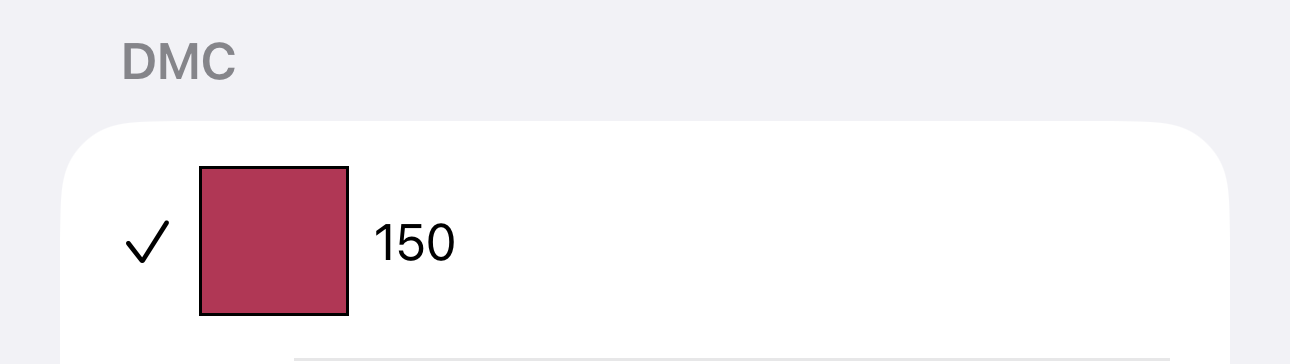
Colour that hasn't been added Colour that has been added - Upon selecting back, you'll now see the list of added colours updated.